

The art of creating the perfect landing page is, in effect, the science of creating high-converting engaging campaigns.
Landing pages play a pivotal role in any digital marketing campaign. They provide a first touchpoint for customers to interact with your brand, and are typically the main lead generation mechanism for a campaign. The customer journey starts with a landing page; getting the design down to a science isn't just about conversion – it's about user experience and brand reputation.
Designing effective landing pages in Marketo is a linchpin of your campaign creation process. Let's take a closer look at tips and best practices for designing Marketo landing pages.
Marketo Landing Pages and Form Design
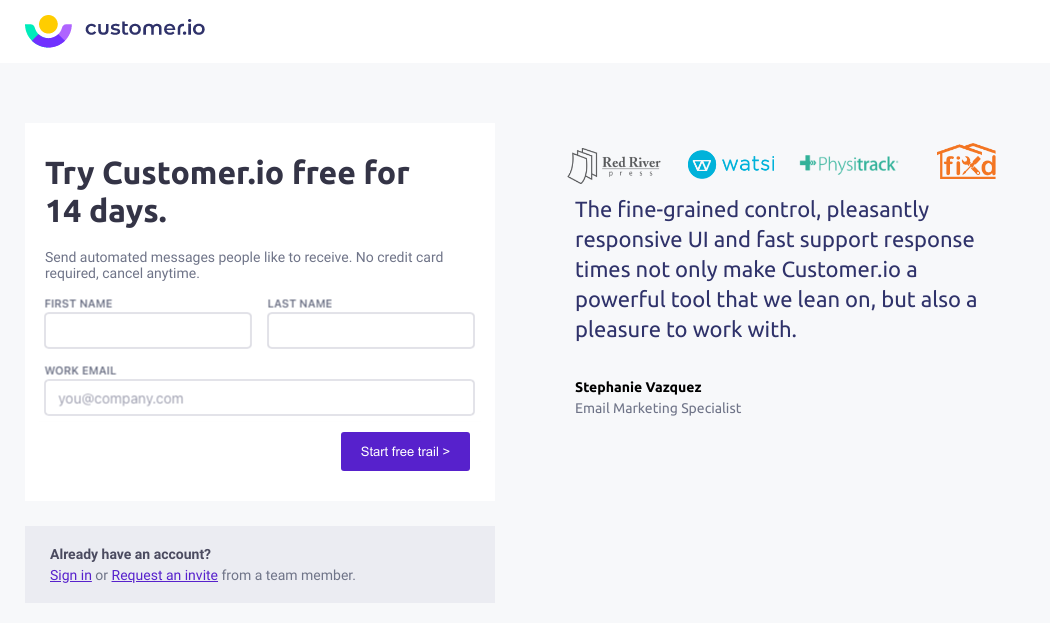
Forms serve as the gateway between visitor interest and lead conversion on your landing pages. When designed thoughtfully, they reduce friction while maximizing data collection and seamlessly feeding your Marketo campaign workflows. The difference between a well-crafted form and a mediocre one can significantly impact your conversion rates.
The foundation of effective form design lies in simplicity. Each additional field creates friction that can drive potential leads away. Marketo's hidden fields feature lets you capture valuable data without overwhelming visitors—pulling information from cookies or scripts running behind the scenes.
Progressive profiling takes this concept further. Rather than confronting visitors with lengthy forms, you can collect basic information initially and gather additional details over subsequent interactions. This approach respects the user's time while building comprehensive lead profiles.
Dynamic content transforms static forms into personalized experiences. When forms adapt to visitor behavior or characteristics, conversion rates improve measurably. This personalization extends beyond the form itself to surrounding messaging and calls-to-action.
While creating program-specific forms might seem logical, this approach quickly becomes a maintenance nightmare. Global forms offer a cleaner solution. Design one versatile form, then use smart campaigns to filter submissions based on the originating page or campaign. This strategy maintains consistency while allowing for program-specific lead routing.
The result? Streamlined form management that scales with your marketing operations without sacrificing functionality or performance.
Form design runs deeper than field count, and it deserves its own deep dive. Our guide to Marketo forms best practices covers field strategy, layout, and lead routing in detail.
Marketo Landing Page Content
The best landing page examples masterfully connect with customers through clear, direct content. The art of copywriting is very much alive and well. Having compelling content on your landing page can help increase conversion rates, improve your brand's reputation, and enhance the user experience.
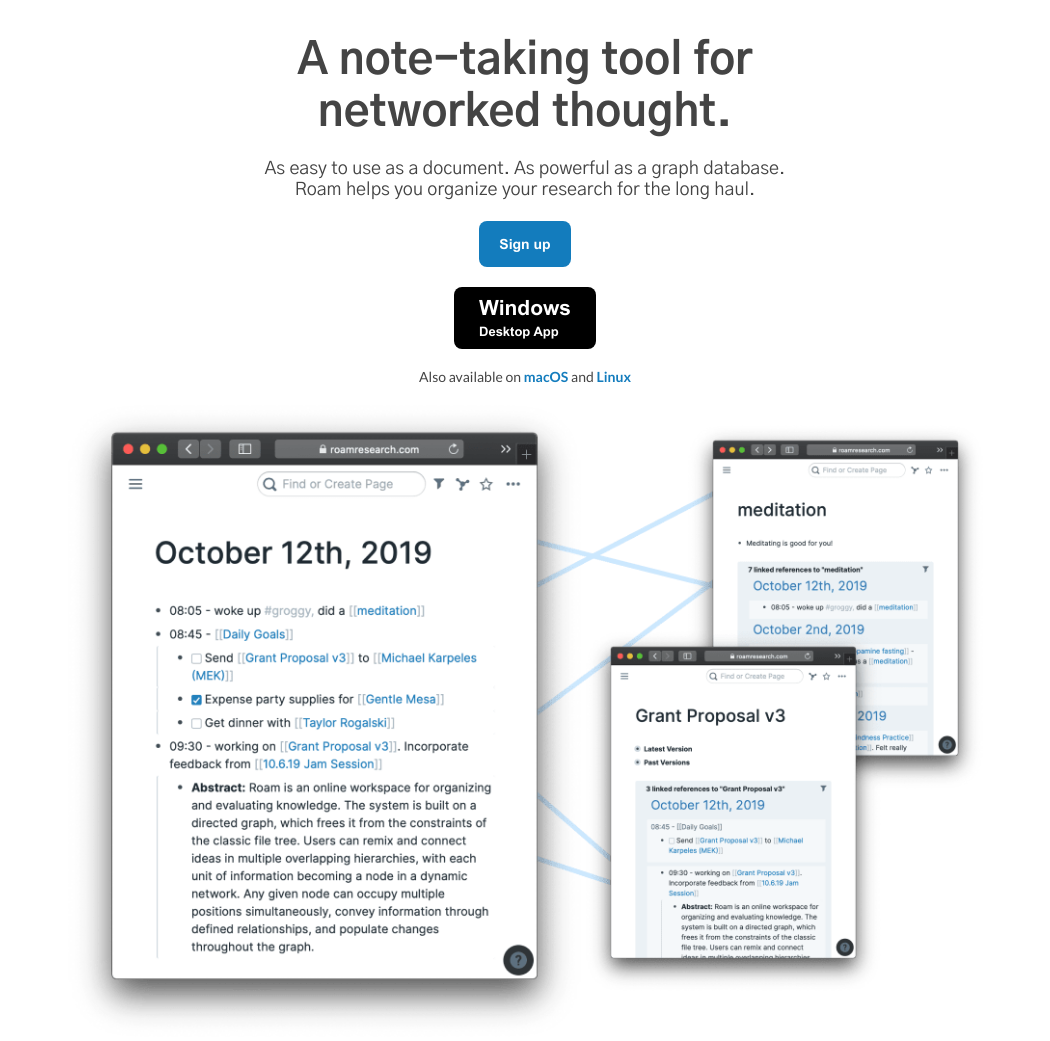
To do this, follow tips like writing clear and concise headlines, keeping supporting text short and direct. Unlike a blog post that's a little bit more long-form, landing pages have a straight line towards conversion. So make sure that you're building that story effectively, precisely, and purposefully.
Call to action placement is really important. We recommend placing your CTA above the fold. Oftentimes it makes sense to put it in the hero section at the top of the page and then have a CTA at the bottom of the page as well. When it comes to organizing important information, consider using bulleted lists or numbered lists to help organize key messages.
Marketo Template Design
For those of us in marketing operations and campaign creation, one of the most important tenets of what we do is making sure that our work is scalable. Designing effective landing page templates for Marketo can boost efficiency, cut down time to execution, and improve outcomes across the board.
When creating templates for your Marketo instance, there are a few things to think of. First of all, making sure that you name all the elements in the template clearly. Users will use the template to create landing pages, so they'll need to understand what's expected in each module on the page. A clear naming convention backed up by internal documentation can go a long way to helping your marketing team create beautiful landing pages.
It can be a pesky little detail, but Marketo sometimes adds extra tags into the Marketo editor. For instance, if you're copying and pasting from a word processing doc, it sometimes will add spans and so on. You want to make sure to avoid this at the template level so you're not reproducing these errors or just adding extra code for browsers to render.
Defining custom CSS helps to ensure all your landing page templates follow the same brand alignment. This custom CSS can be loaded up in a style sheet file and applied to all your landing page templates. Making sure that your design team has this in place can help ensure that your brand looks great no matter who creates the landing page.
Having the right balance of editable modules is important. Some areas should be fixed and uneditable by users. For instance, the footer or the header of the landing page. Other areas, however, are valuable to ensure that they are editable. For instance, being able to swap out forms, being able to swap out images, or add in new content.
When creating landing page templates, you also want to limit the number of content blocks. 25 to 30 is the maximum we recommend to keep the editor manageable and efficient for users. It can seem like a high number, but with the various different modules for personalization and so on, you may find yourself creeping up to this number relatively easily. The key is to keep your pages simple and effective.
You don't have to start from a blank file, either. Marketo ships starter templates, and Knak maintains a gallery of Marketo email and landing page templates you can browse for structure and inspiration. Whichever route you take, remember that the template decides more than looks: it determines whether your pages are free-form or guided, which is worth a section of its own.
Guided vs. Free-Form Landing Pages in Marketo
Before any of the advice above pays off, there is a choice every Marketo landing page starts with: which editor you build in. Marketo Engage has two landing page types, free-form and guided, and the template you pick determines which one you get.
Free-form pages let you drag and drop content anywhere on the canvas. Adobe describes the template as being like a SlideMaster in PowerPoint, just a background, and you can generate a simple mobile version of the page with one click. Free-form is the quick path when you have limited time or technical resources, but every page becomes its own one-off design.
Guided pages flip that control. The template defines the layout, and editors can only change the elements and variables the template author marked as editable. Changing the layout itself means changing the template code, and responsive behavior is built into the template rules. Guided works best when you have well-coded, responsive templates in place, whether built in-house or purchased.
For enterprise teams, guided is usually the right default. It enforces the template discipline we covered above at the editor level: brand-safe, responsive by design, and consistent no matter who builds the page. Free-form flexibility looks attractive right up until the tenth page ships with its own improvised layout. When you are ready to build the templates themselves, our guide on how to build Marketo landing page templates covers the code-level walkthrough for both types.
As of the July 2026 release, guided and free-form remain Marketo's two landing page editors. Adobe shipped a new Email Designer in 2025, but no equivalent has arrived for landing pages, so these two modes are the ones worth mastering.
Marketo SEO and Technical Performance
While we often think of landing pages sent out via campaigns as primarily being lead generation or demand generation and not so much for SEO, this is still important for us to consider. It's important to remember that as long as the page itself is discoverable by Google and search engines, the content could be crawled and displayed to customers. Increasingly as well, LLMs like ChatGPT, Perplexity, Gemini, and Claude are referencing content—often landing pages—for people who are interested in your product or services. So making sure that your details here are taken care of is important.
The SEO basics are key. Setting meta titles and descriptions helps to ensure that search engines and other crawlers are able to quickly parse the information on your page. Having good heading hierarchy and structure allows the crawlers to get a sense of the content architecture on the page itself. Making sure your page is free of SEO errors is also important. Simple things like broken links and poor page performance can impact user experience as well as SEO appearance. Having an SEO-friendly URL ensures that the URL is easy for users to navigate back to and communicates some information about what's on the page.
From a technical performance perspective, we want to make sure that our page speed scores are acceptable. You can use a tool like PageSpeed Insights to check to see if there are any performance issues with your page. It's important that your landing page is rendered quickly and effectively for visitors in order to ensure a strong conversion rate.
One product note: Marketo's built-in SEO add-on was deprecated on March 31, 2026, so treat SEO for your landing pages as a job for standard tooling rather than something the platform handles for you.
Marketo Landing Page Visuals
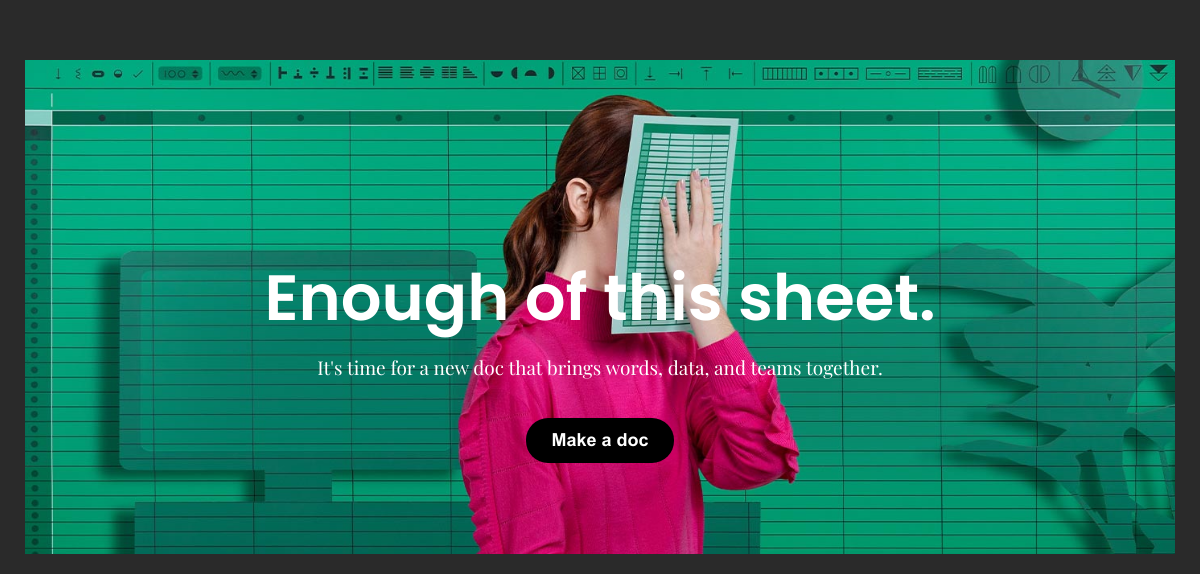
The visuals you use on your landing pages can have a big impact on conversion rates. It's cliche, but a picture is worth 1000 words. It can clearly communicate your value proposition, entice users into completing the form, and communicate something of substance about your brand. It's important to use high quality, relevant images and graphics on your page. Focus on grabbing attention while staying on brand.
From a Marketo perspective, you can use the Design Studio to reuse images in multiple landing pages. It's a best practice to develop a gallery of pre-approved assets that can be used in a number of different instances. The benefit of using Marketo Design Studio is that when you update the image in Design Studio, it updates everywhere it's being currently used.
Marketo Landing Page Personalization
In your campaign lifecycle, landing pages represent one of the earliest, and most significant opportunities to apply personalization. Personalization allows you to improve the user experience and conversion rate outcomes. Using Marketo's tool set, we can go far beyond first name personalization.
When you're developing your landing pages, consider dynamic content blocks to change based on user segmentation. So if a user belongs to a segmentation like job function or job seniority, you can update the page content based on whether they're an executive or a manager level. For example, executives might see ROI-focused messaging and case studies about enterprise implementations, while managers might see operational benefits and workflow improvements.
Marketo provides the ability to generate personalized landing pages, which can be an awesome way for you to engage with known leads and to provide them with a highly personalized experience. This goes beyond simple text swaps—you can change entire sections, swap out relevant case studies, or display industry-specific offers based on what you know about the visitor.
Marketo snippets for dynamic content are effective. They allow you to easily deploy content and update that content across all the assets. So snippets work the same as images in the Design Studio. When you update a snippet, it populates everywhere it's being used. This makes maintaining personalized content at scale much more manageable.
Marketo tokens are a fantastic way to apply personalization and are Marketo's built-in variables. Beyond basic contact information, you can use tokens to pull in company data, recent activity, or even custom fields that reflect their stage in the buyer's journey. This level of personalization can significantly increase engagement and conversion rates by making each visitor feel like the page was created specifically for them.
Marketo Landing Page Analytics and Reporting
All this work put into designing the perfect landing page, and it's essential that you have the analytics and reporting in order to validate its effectiveness. Marketo's built-in analytics tools and reports can provide you with some initial insights on how your pages are performing. Although you may want to use a web analytics tool like Google Analytics installed on your page to get more information.
You can install tools like Google Tag Manager to allow you to use other software, such as heat map software, to get more information on the page. Heat mapping tools like Hotjar or Crazy Egg can reveal where visitors are clicking, how far they're scrolling, and where they might be getting stuck in the conversion process. This behavioral data complements Marketo's conversion metrics and helps you understand not just what's happening, but why.
It's critical that you implement A/B testing as well. Marketo's landing page A/B testing tools are a great starting point, and so are the various premium solutions available. Test elements like headlines, form fields, CTA placement, and images to see what resonates best with your audience. Start with high-impact elements that could significantly affect conversion rates before moving to smaller details.
In Marketo, the native feature is called Landing Page Test Groups. From Design Studio, select New, then New Test Group, add the landing page variants you want to test, and Marketo splits traffic between them and tracks page views and form completions for each. For a deeper look at which numbers to watch, see our guide to landing page A/B testing metrics.
The key is to continuously iterate over time, finding improvements and then measuring those results. Set up regular reporting cadences to review performance metrics like conversion rates, bounce rates, and time on page. Use this data to inform your next round of optimizations and create a culture of continuous improvement around your landing page performance.
Marketo Landing Page Productivity
One of the benefits of the Marketo system is that it allows you to scale up your landing pages within your campaigns quite rapidly. Simple tips like cloning landing pages from a master template rather than duplicating old landing pages can save you headaches down the line. Maintaining that master template, ensuring that you're using the latest brand styling, imagery, and design layout based on A/B testing, ensures that you benefit from the compounding benefits of having a center of excellence for your landing pages.
From a marketing operations perspective, it's important to minimize template proliferation. It's easy to create templates, but hard to keep control of them across the organization. Within your Design Studio or your template management tool, organizing assets by asset type makes it easy for users to know what asset template to use in which case.
If your design team works in Figma, a Figma to Marketo workflow keeps that master template aligned with the source design instead of drifting away from it one cloned page at a time.
Using a centralized template management approach, whether it's Marketo Design Studio or a no-code landing page builder like Knak, can help you create an internal repository for landing pages, so that anytime somebody uses or needs a landing page for a campaign, they have something at their fingertips ready to develop. If you're looking to future-proof your landing page design and development in Marketo, check out Knak.
That is not hypothetical speed. Broadcom's marketing team builds a Marketo landing page with Knak in 8.8 minutes on average, and gets new pages built and deployed in 24 hours or less.
Frequently Asked Questions
A Marketo landing page is an asset created from a landing page template, usually inside a program. You pick a template, edit the content in the free-form or guided editor, add a form, and approve the page to publish it on your Marketo landing page domain. Smart campaigns then listen for form fills on the page to route and score the leads it generates.
In Marketing Activities, select your program, then choose New Local Asset and Landing Page. Name the page, pick a free-form or guided template, and edit the content in the editor. When the page looks right, approve it to publish. Cloning from an approved master template is usually faster and safer than starting from scratch.
Free-form pages let you drag and drop content anywhere, with the template acting as a simple background. Guided pages lock the layout to the template and only expose the elements the template author marked as editable. Free-form is faster for one-off pages; guided is the scalable, brand-safe choice for teams building many pages.
A Marketo landing page template defines the layout, styling, and editable areas that every page created from it inherits. You create or import templates in Design Studio, approve them, and then build landing pages from them inside your programs. A small set of well-maintained templates beats a sprawl of one-off designs.
Conversational landing pages pair a landing page with Dynamic Chat, Marketo’s chat product, so visitors can qualify themselves, get answers, or book a meeting through a dialogue instead of a static form. Dynamic Chat ships with Marketo Engage and gets updates on its own release cycle.
Marketo’s native landing page builder is really two editors: the free-form editor for drag-and-drop pages and the guided editor for template-locked pages. Many enterprise teams also pair Marketo with a no-code builder like Knak, where marketers create brand-approved pages without writing code and sync the finished asset to Marketo.