

Apple Intelligence changed what recipients see when your email lands in Apple Mail. A message summary, a short AI-generated description of your email, replaces your preview text under the subject line, and messages are automatically sorted into category tabs. The features that shipped with iOS 18.2 are now the default Apple Mail experience:
- Categories (a.k.a. Inbox tabs)
- Digest Views
- Branded Mail icons, and
- an upgraded iteration of Apple Intelligence message summaries.
iOS 18.2 shipped publicly in December 2024. Since then Apple has extended these features across iPhone, iPad, and Mac, and the current release is iOS 26.6. (If the version jump looks odd: Apple renamed its OS versions in 2025 to match the year, so iOS 18 was followed by iOS 26.)
We tested all of these features hands-on to answer the biggest questions email marketers have about the AI inbox. This page is now our living reference for how Apple Intelligence handles email: we update it as Apple changes how Mail behaves, and the changelog below tracks what moved in each release.
We also looked at the same features on an older model without any Apple Intelligence capability, to see how that experience compares. (See the devices that support Apple Intelligence here.)
What changed in each release
Apple ships Mail changes on a yearly OS cycle, with smaller point-release adjustments in between. Here is how the email-facing features have moved since our original hands-on:
December 2024 (iOS 18.2): Categories, Digest view, Branded Mail icons, and AI message summaries shipped publicly on iPhone, the features first announced with iOS 18 earlier that year. Our original hands-on tests below were run against this release.
January 2025 (iOS 18.3): Apple temporarily paused notification summaries for news and entertainment apps after complaints about inaccurate AI headlines, restyled summaries in italics with clearer labeling, and added per-app controls. The feature was later relaunched, and summaries in Mail were not pulled.
April 2025 (iOS 18.4): Apple Intelligence reached iPhone and iPad users in the European Union.
September 2025 (iOS 26, iPadOS 26, macOS Tahoe 26): Apple jumped its version numbers from 18 to 26 to match the year. Mail categories arrived on Mac and iPad, users gained control over summary preview length in Settings, and Apple Wallet began using Apple Intelligence to pull order tracking out of merchant and carrier emails (English, US and UK). Apple also folded Business Connect into the unified Apple Business platform, which is where Branded Mail lives now.
November 2025 (iOS 26.1): Apple Intelligence expanded to most regions worldwide in 16 languages, making the summarized, categorized inbox the default experience for the bulk of Apple Mail users.
July 2026 (iOS 26.6, current at this update): No structural Mail changes. Summaries in Mail and Messages, notification summaries, and priority messages all remain standard Apple Intelligence features in Apple’s current documentation.
Branded Mail icons
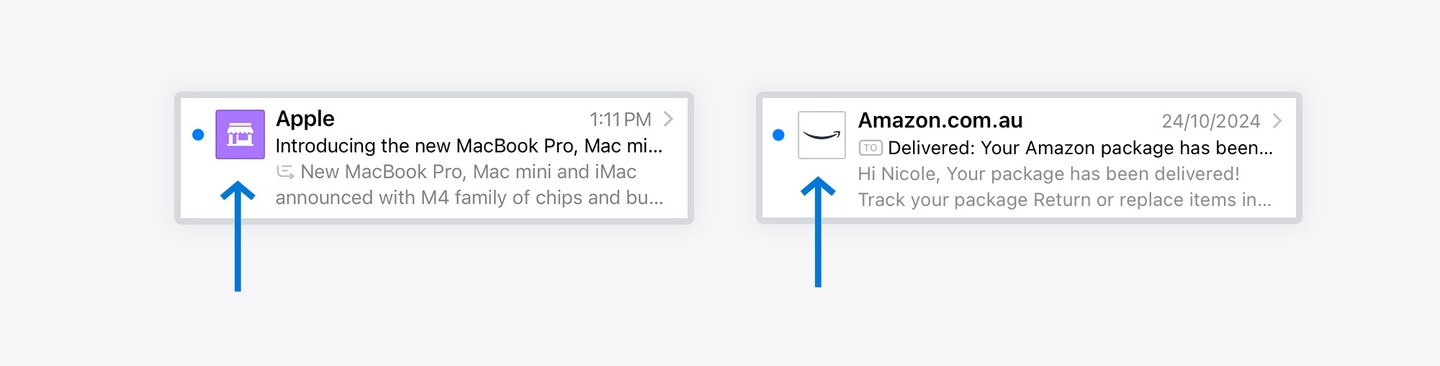
The small icons next to messages in Apple Mail are sender logos: businesses that register with Apple show their real brand logo, and every other organization is assigned a generic placeholder icon.
These icons are part of a feature called Branded Mail on Apple Business, the platform that replaced Apple Business Connect.
Signing up to Apple Business is free, and once your organization and domain are verified you can upload your logo to have it displayed in the inbox. Apple’s review of a brand can take up to seven business days. Two requirements catch email teams out: every email must be authenticated by DKIM (SPF-only authentication is not supported) and your domain must meet DMARC requirements. Non-commercial domains such as gmail.com are not permitted, and a brand is capped at 100 domains, subdomains, and email addresses combined.
Approved branding shows up in Mail on iPhone (when the device is set to one of seven supported default languages, including English) and in iCloud Mail on the web, so the logo now follows your emails beyond the iPhone inbox.
When these features were first announced, we were all fooled into thinking that Apple was finally going all-in on BIMI. Alas! Branded Mail icons are unrelated to BIMI, so if you already have BIMI configured, note that unfortunately this is a separate undertaking.
Until you sign up to add your logo, you will be assigned a random icon that is only vaguely relevant to your particular business. (The icons have a very iCloud-circa-2012 flavor to them.)
In our first week of testing, back in the iOS 18.2 beta, the only sender showing a Branded Mail icon was Amazon Australia. Branded Mail has now been live since December 2024 and major senders have had time to adopt it, so an auto-assigned placeholder icon increasingly stands out for the wrong reasons.
One more reason to get the Apple Business setup right: Apple Wallet now uses Apple Intelligence to automatically find order confirmation and shipping emails and surface the tracking details in Wallet (currently English, US and UK). Apple asks senders to include the merchant name, order number, and tracking number in those emails so its on-device models can associate them with an order. Your transactional email is now feeding a surface outside the inbox entirely, which is a strong argument for keeping order details in live text.
Categories: the new inbox tabs
This is the big one! Categories (or tabs) are on by default in Apple Mail, and they are no longer an iPhone-only feature: since the 26-series releases, Mail on Mac and iPad sorts messages into the same four categories.
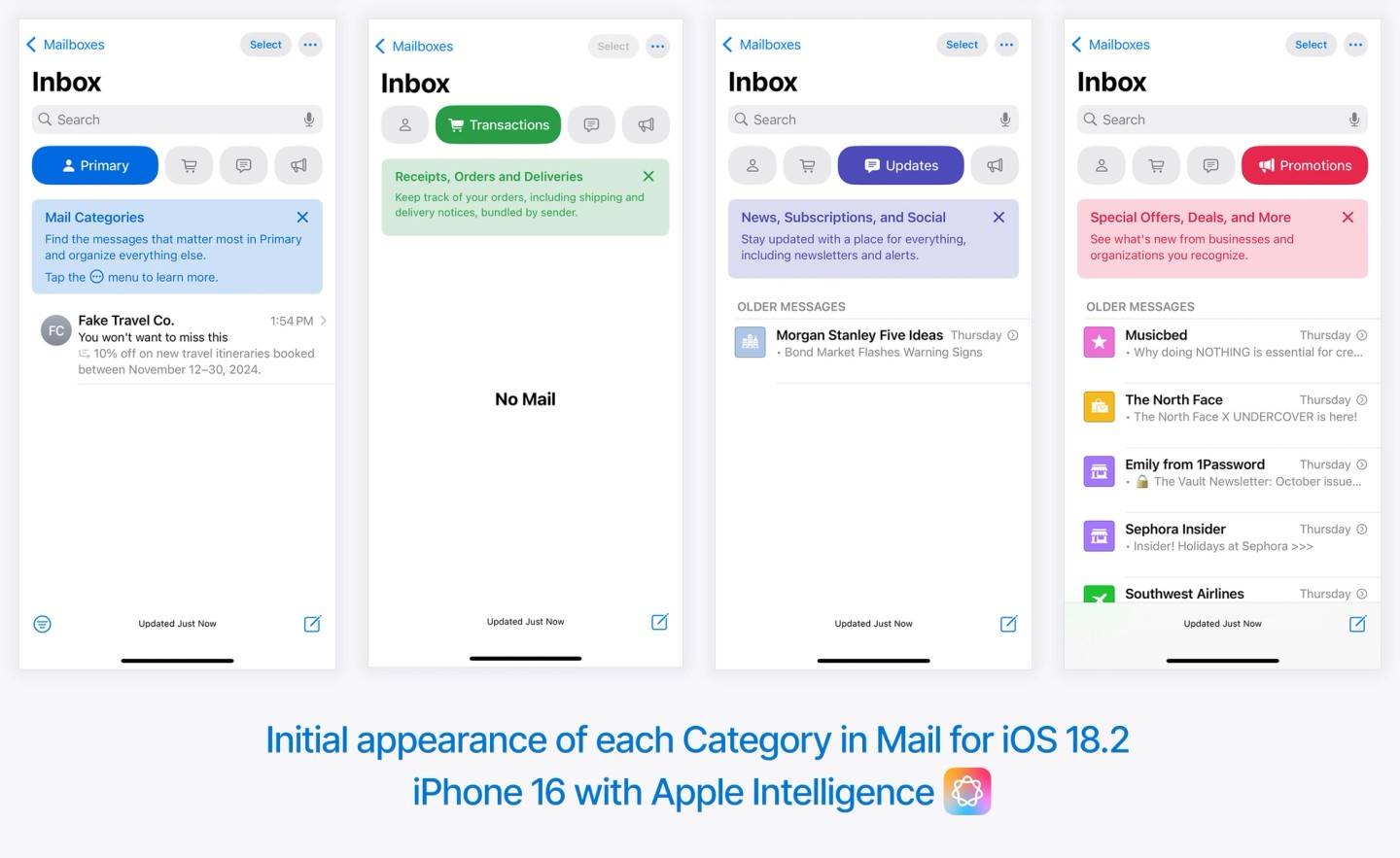
When you open the inbox you are presented with four tabs: Primary, Transactions, Updates and Promotions.
Below is what the experience looks like when you first open the Mail app on a newer device with Apple Intelligence enabled. This account had a lot of messages in the inbox that ended up in Promotions, and not much in the other tabs.
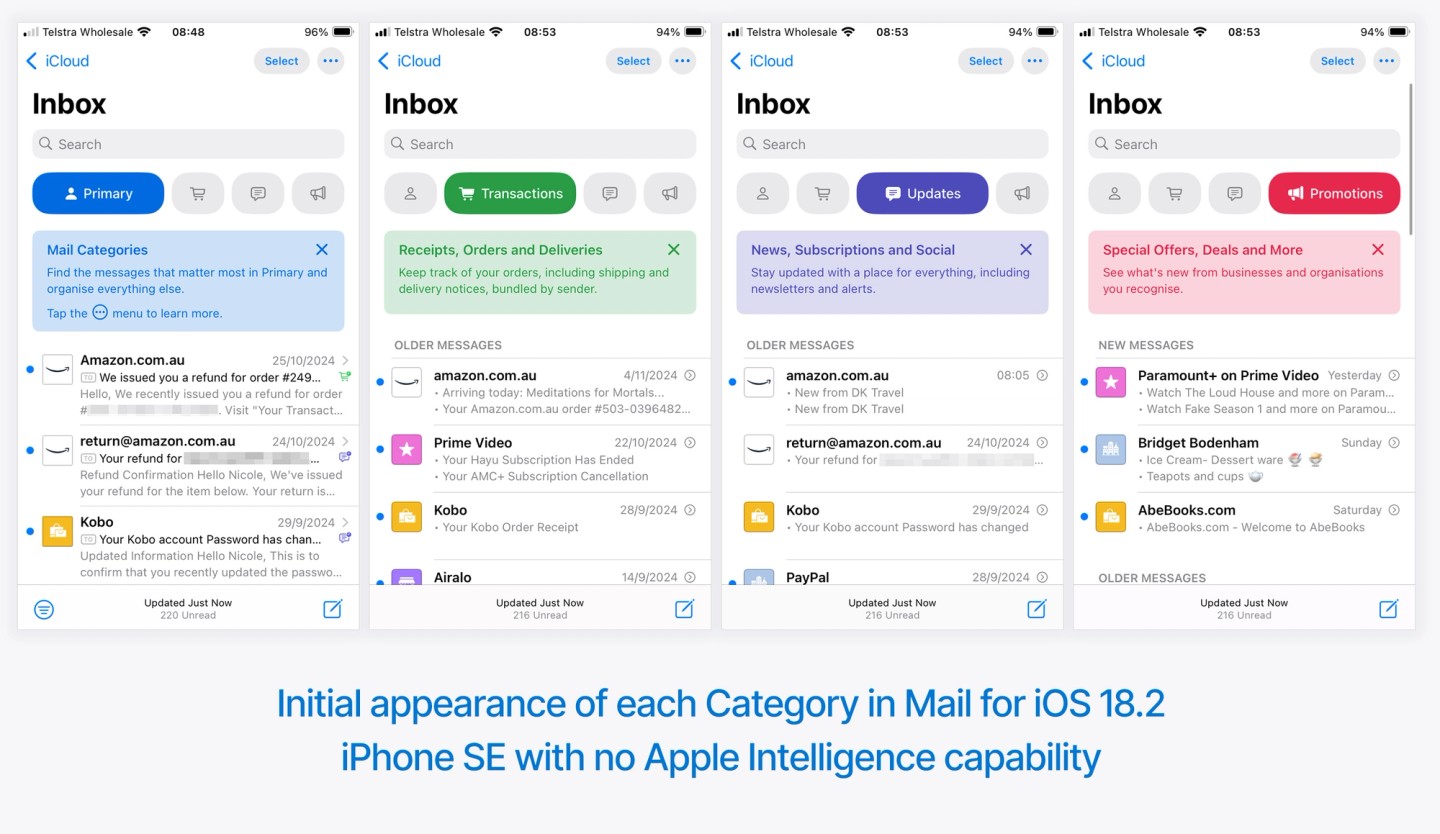
Below is the same experience on a different, older and smaller device with no Apple Intelligence capability.
This one gives a clearer view of how read and unread messages are treated: unread are grouped together at the top under “New Messages” with unread together under “Older Messages”.
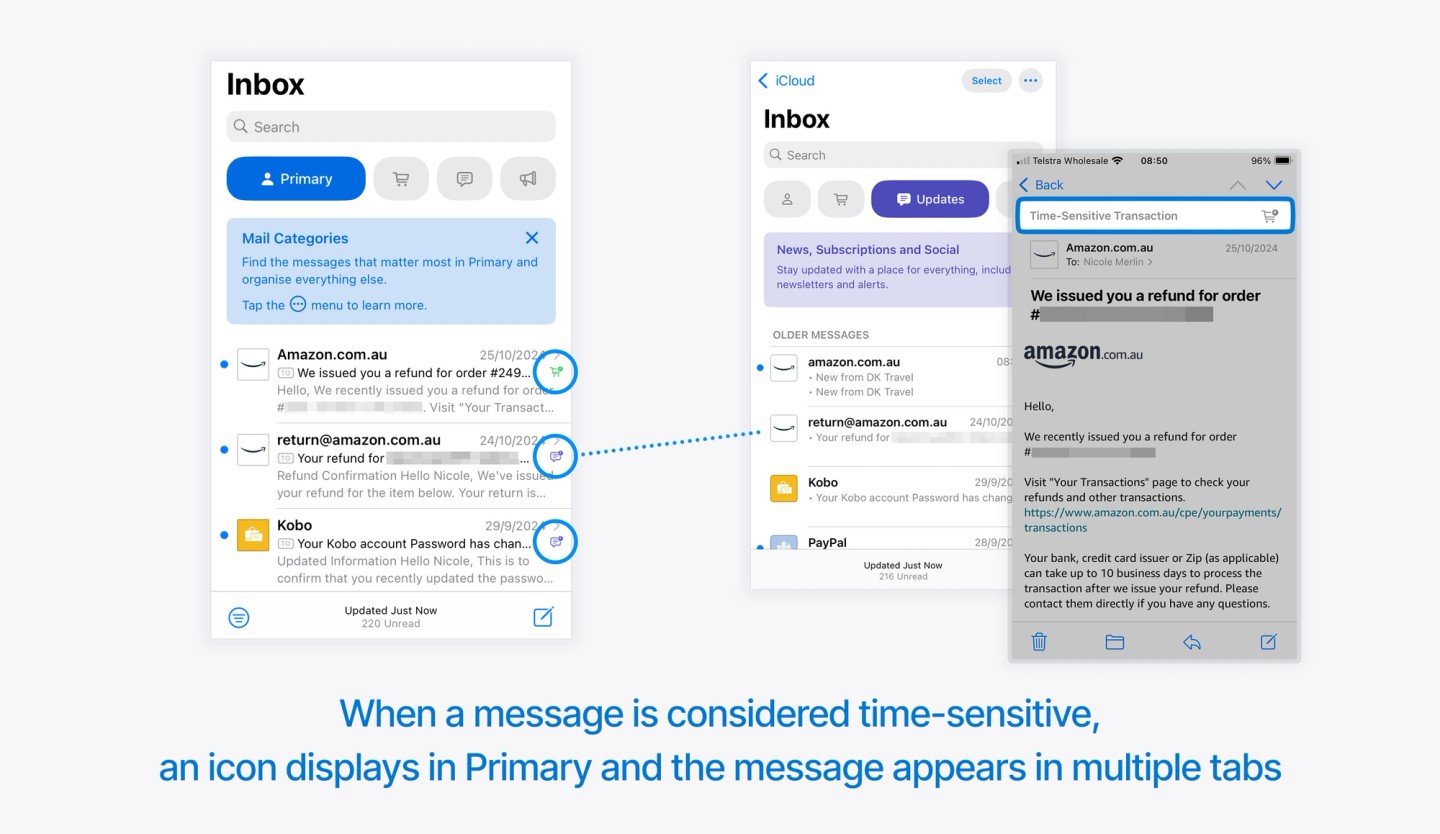
There is some confusing duplication of messages in the Primary tab. If Mail determines that a message in Primary is also a time-sensitive Update or Transactional message, a tiny icon is displayed next to the message in Primary, and the message also appears in the relevant tab.
The All Mail tab that appeared in Apple’s original announcements never shipped: Categories and List View are the two ways to see your messages.
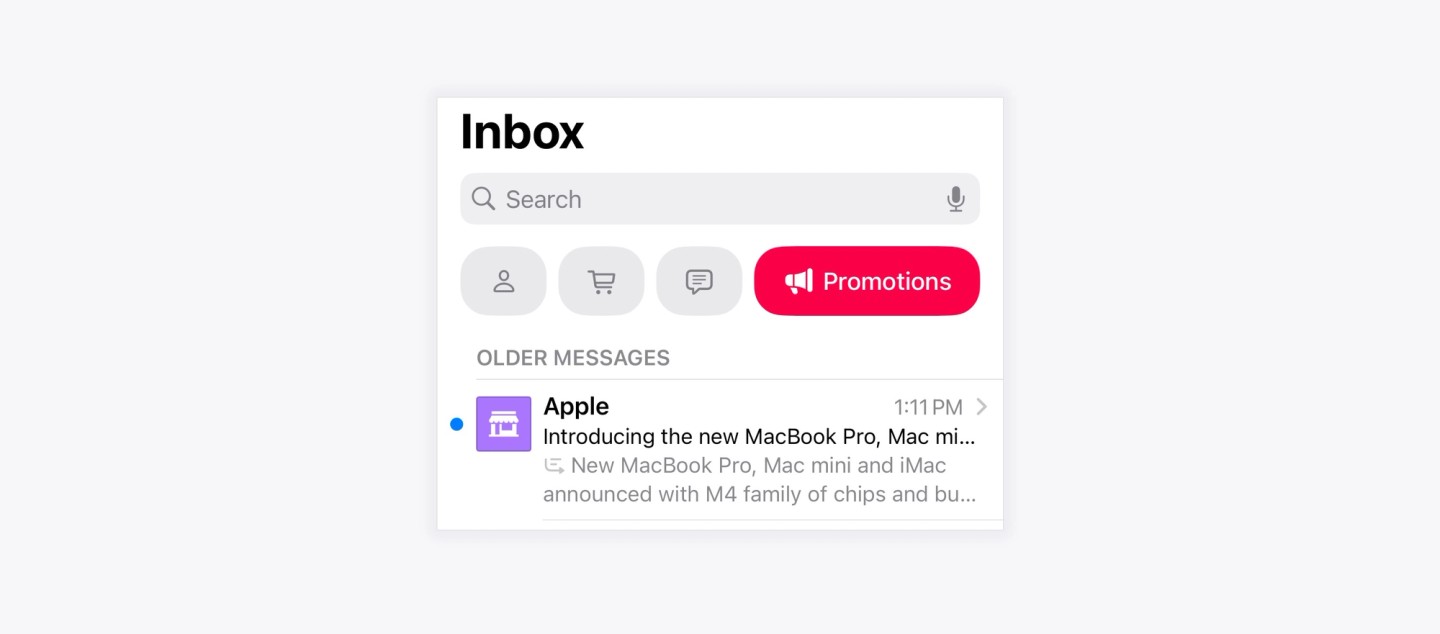
And notably, Apple themselves landed in the Promotions tab in my tests:
If your own messages land there, that is not a deliverability penalty. Our look at why the Promotions tab is not the spam folder covers what a Promotions placement actually means for engagement.
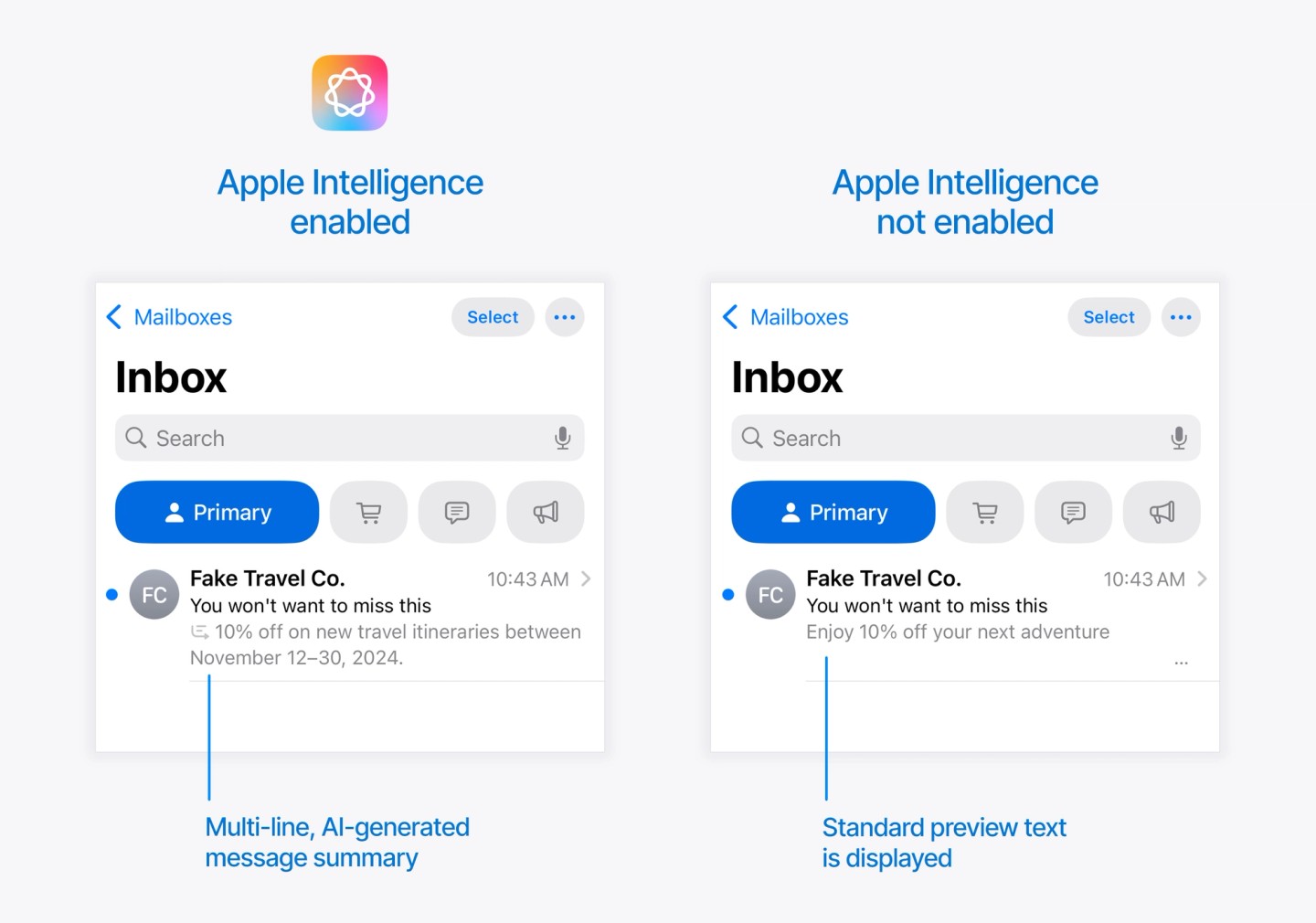
The Primary tab
The Primary tab differs slightly depending on whether users have Apple Intelligence enabled on their device or not.
With Apple Intelligence, there is a multi-line AI-generated message summary on each message, whereas older devices will continue to show the standard preview text under the subject line.
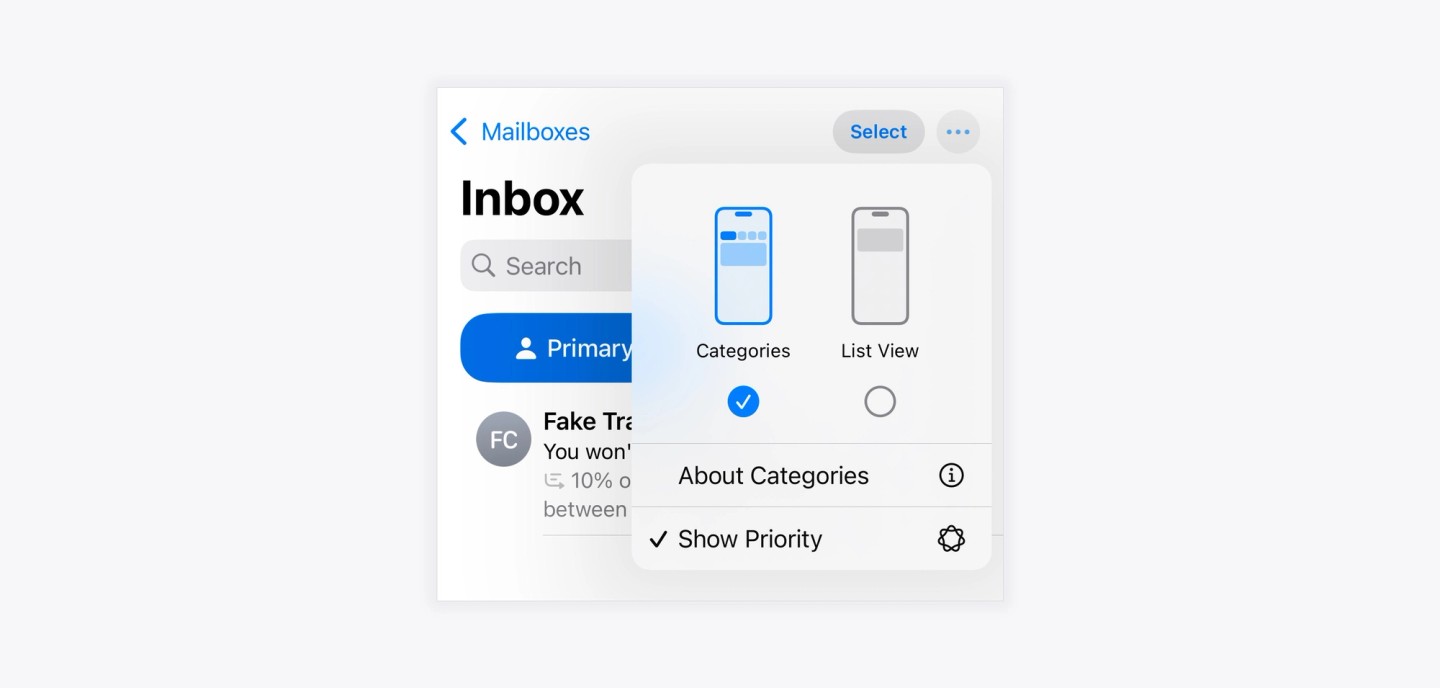
Options to customize or switch views
When you are in any area of the Mail app, you can tap the three-dot menu in the top-right corner to access display options.
There is a simple top-level option to switch between Categories and List View.
Underneath this is an additional option which depends on the tab you are in. On the Primary tab, the only option here is whether to Show Priority messages or not. (You will see below that the other tabs have a different option here.)
But most importantly, you can see how easy it is to choose between Categories and List View here, easily enabling users to turn off the tabbed experience.
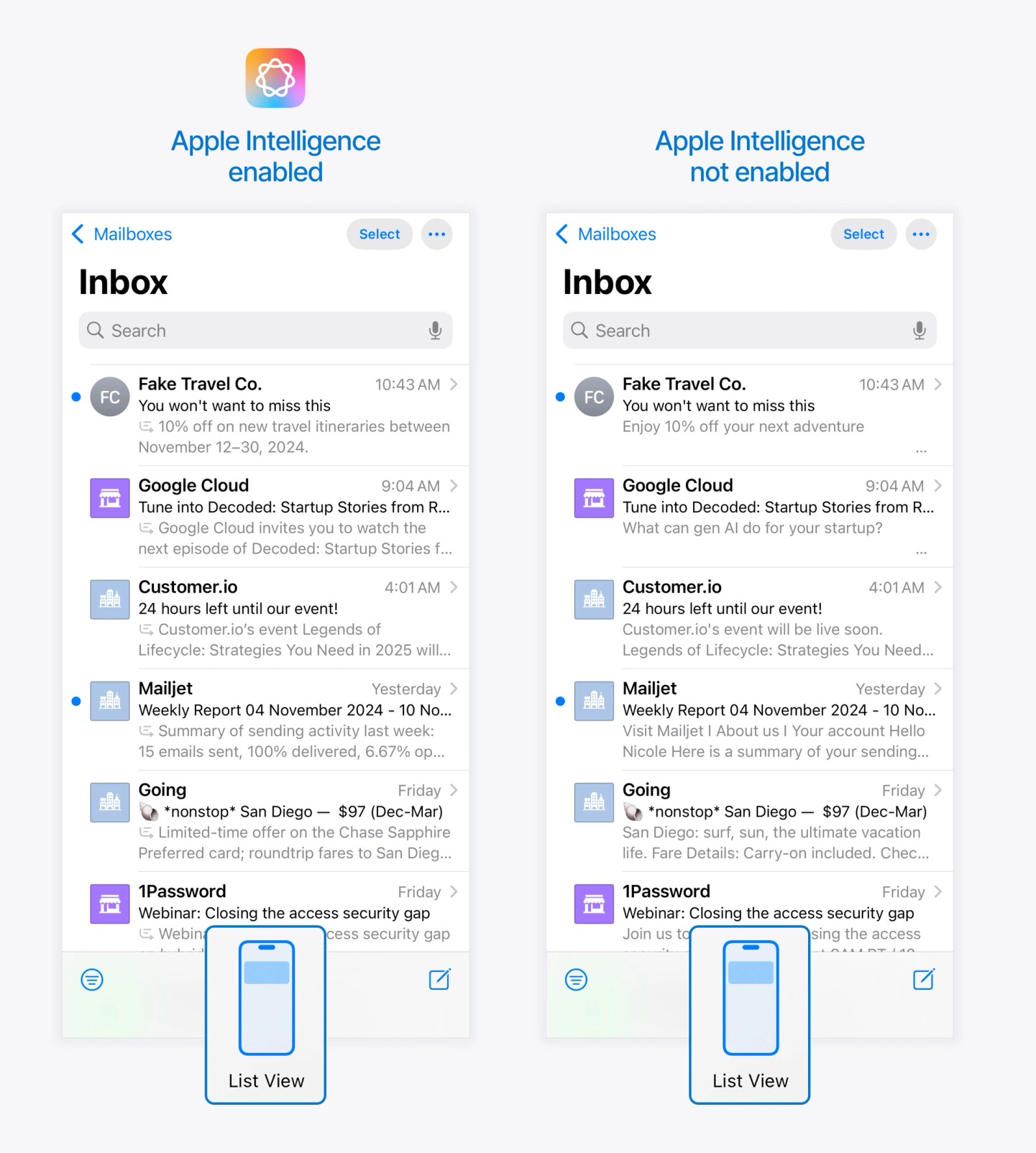
If you select List View, this switches your inbox to a more standard layout with no tabs. All your messages are now in a single view.
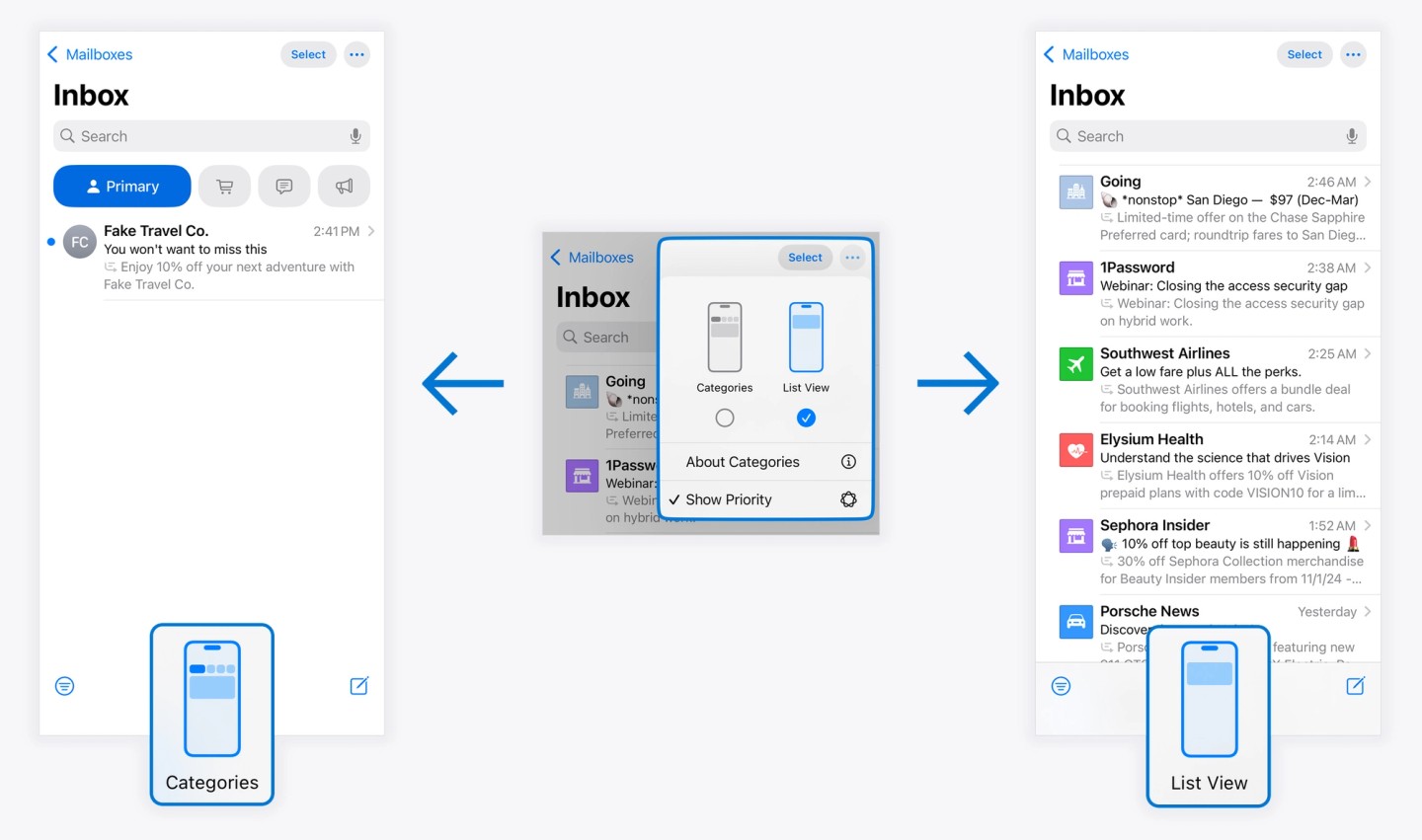
As with the Categories view, the difference between devices with and without Apple Intelligence is just in the preview text area, with Apple Intelligence-enabled devices showing the AI-generated summary.
Transactions, Updates and Promotions tabs
Apple Mail groups emails by sender in these tabs: each sender appears once in the list, and tapping it opens every message from that sender. If your Promotions or Updates tab looks like a list of companies instead of a list of emails, that is Group by Sender at work.
When Categories are turned on, on the Transactions, Updates and Promotions tabs (so, all tabs except Primary) you can toggle on and off an additional setting: the ability to Group by Sender.
It is turned on by default in these tabs.
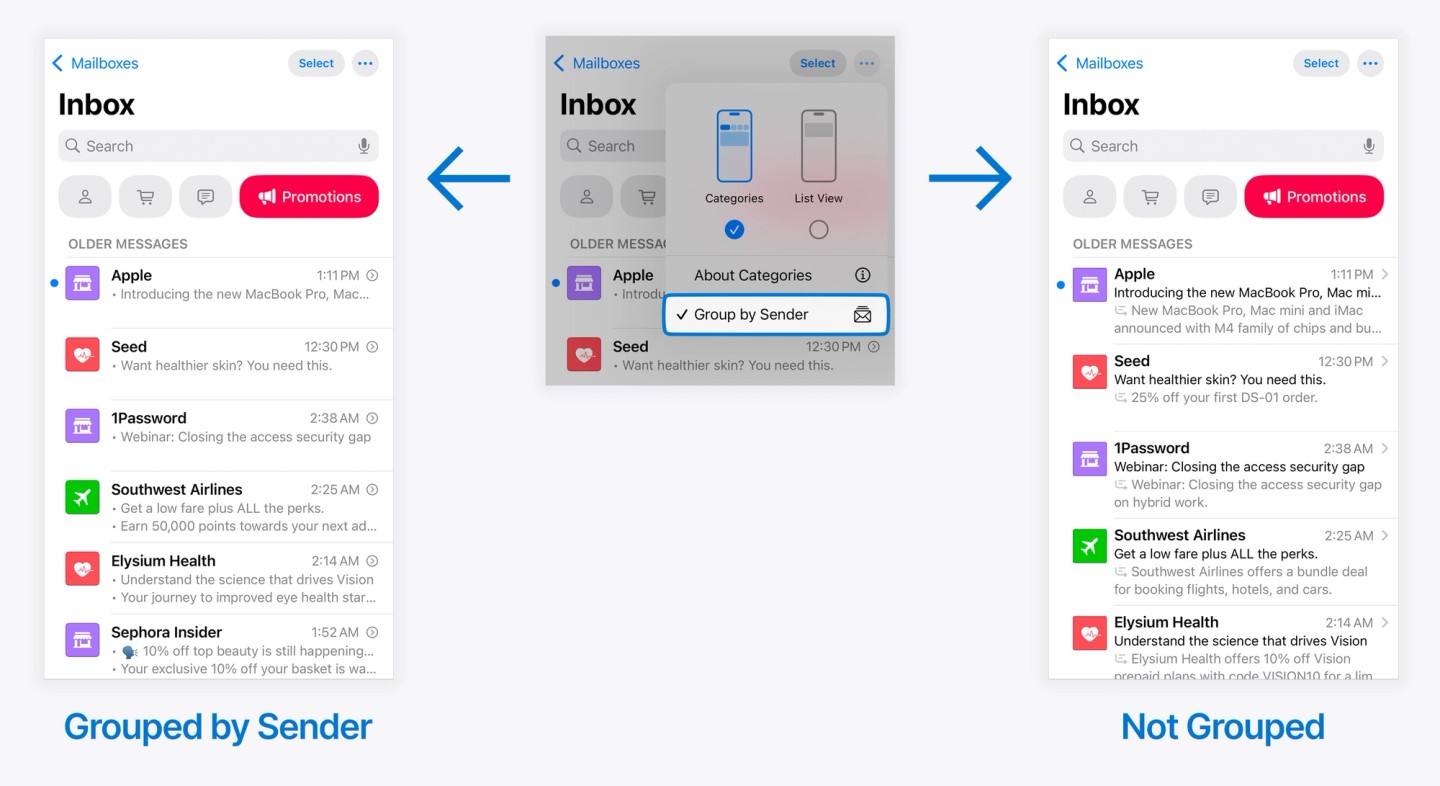
This can be set independently for each tab, meaning you could have Group by Sender enabled for the Promotions Category, but not for the Transactions Category.
Whether this setting is on or off has a big effect on how the inbox displays those messages, and the experience of reading them.
Group by Sender turned off
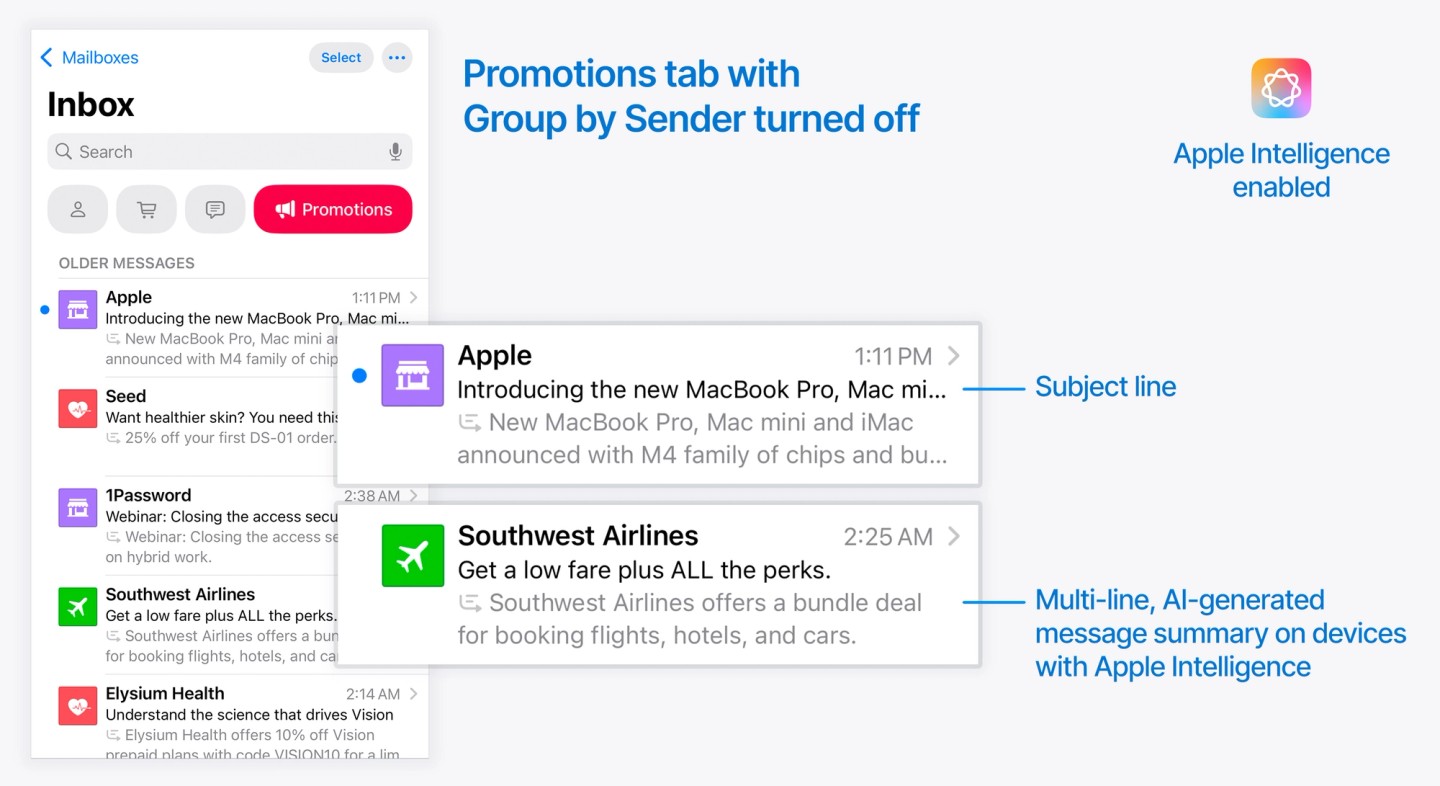
With Group by Sender disabled, you see a more “Standard” inbox view:
- Subject line is displayed
- A multi-line, AI-generated message summary is displayed for devices with Apple Intelligence
- For devices that do not support Apple Intelligence, the only difference is that there is no AI-generated message summary, and the standard preview text is displayed instead.
- Clicking a message opens the email as usual.
Group by Sender enabled
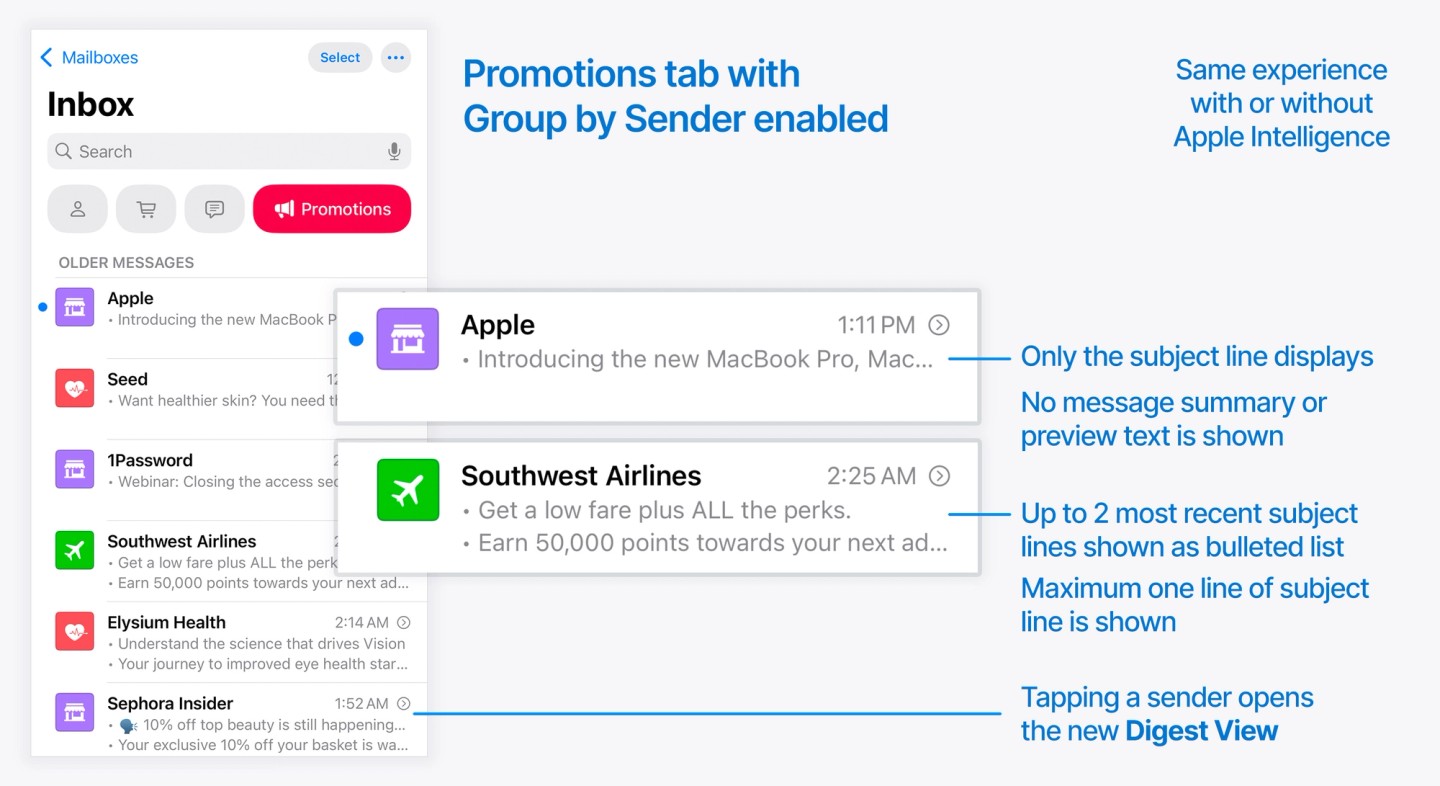
When this is enabled, there is a big change to how these display and behave in the inbox.
- Messages are grouped by sender, meaning a sender only displays once in the view
- No preview text or AI-generated message summary is displayed
- Subject line only is displayed
- Maximum one line of the subject line is displayed
- Maximum of 2 most recent subject lines are displayed as a bulleted list
- Deleting or archiving using swipe gestures from this view will delete every message from the sender at once
- When you tap any of these groups, instead of opening an individual message, you open the new Digest View for that sender
Digest view
Digest view is only reached when Categories are enabled, and when you are in either the Transactions, Updates or Promotions tabs, and that tab is set (via the top-right menu) to Group by Sender.
When all of these are true, tapping an entry in the inbox will open all the emails that you currently have sitting in your mailbox from that sender.
When you open a Digest View, you see the latest messages, and you see a preview of the top 350px or so, but I found that it varies depending on device: in our iOS 18.2 tests, an iPhone 16 showed 388px of each message, whereas an iPhone SE 2nd gen showed 334px. Exact preview depths vary by device and release, but the design implication is stable: the top of your email is the part that gets seen.
The available options in this view: hit the three-dot menu at the top right to re-categorize the sender, mark emails as read and unread, and archive or delete all the messages in the view in a single tap.
There is a header banner area with an icon, and these will be drawn from your Branded Mail settings. If you don’t have Branded Mail set up, your brand will receive a default icon and color.
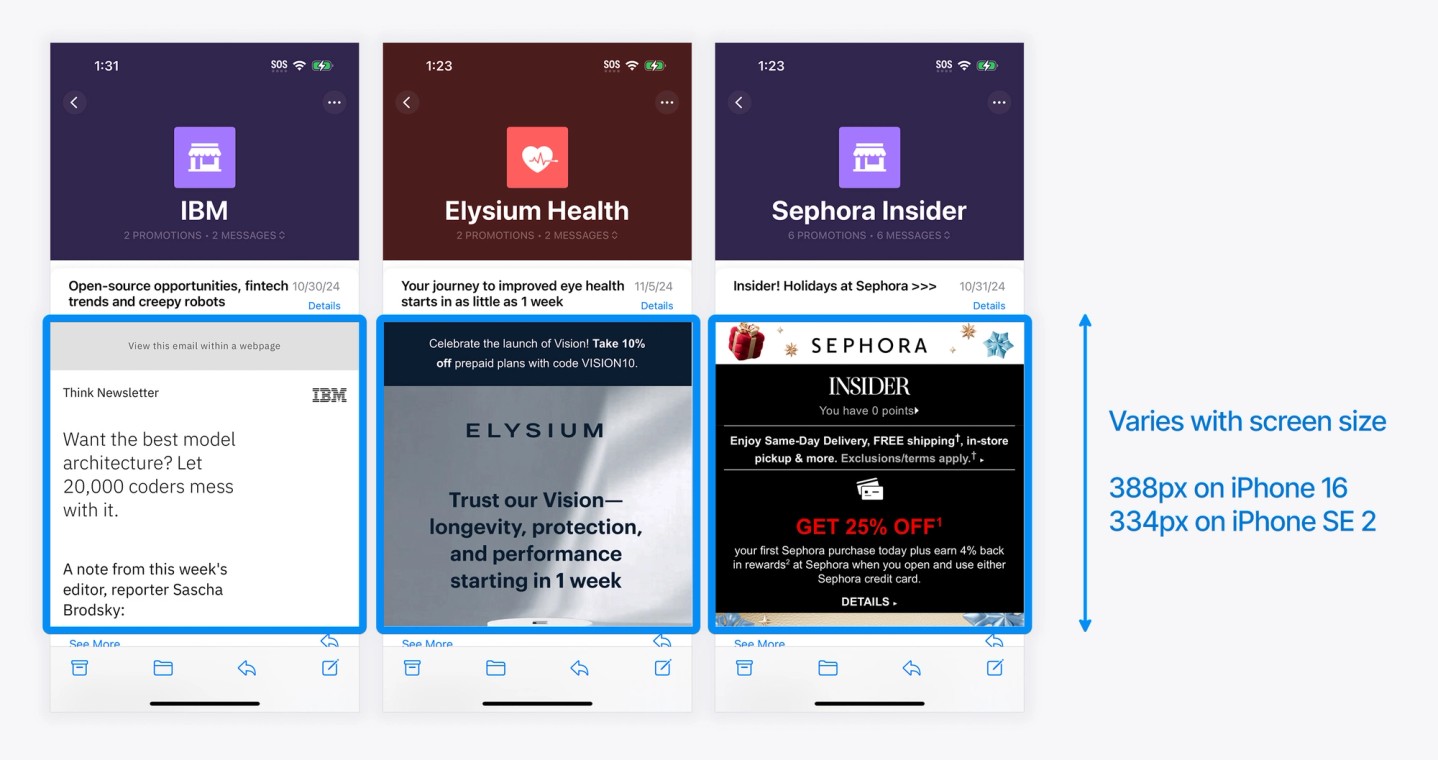
When you tap “See More” underneath any shorter preview, this expands each individual message. After expanding a message, it remains expanded, meaning you can continuously scroll back and forth through multiple full emails at once.
When browsing Digest View, it generally struck me that emails with a colored background were easier to scan in this view, as the edges of the message were more clearly defined.
Some emails with white backgrounds merged with the digest interface and made it really hard to know where the interface ended and the email began.
I also noticed that repetition of the same design elements in multiple emails can get visually confusing very quickly:
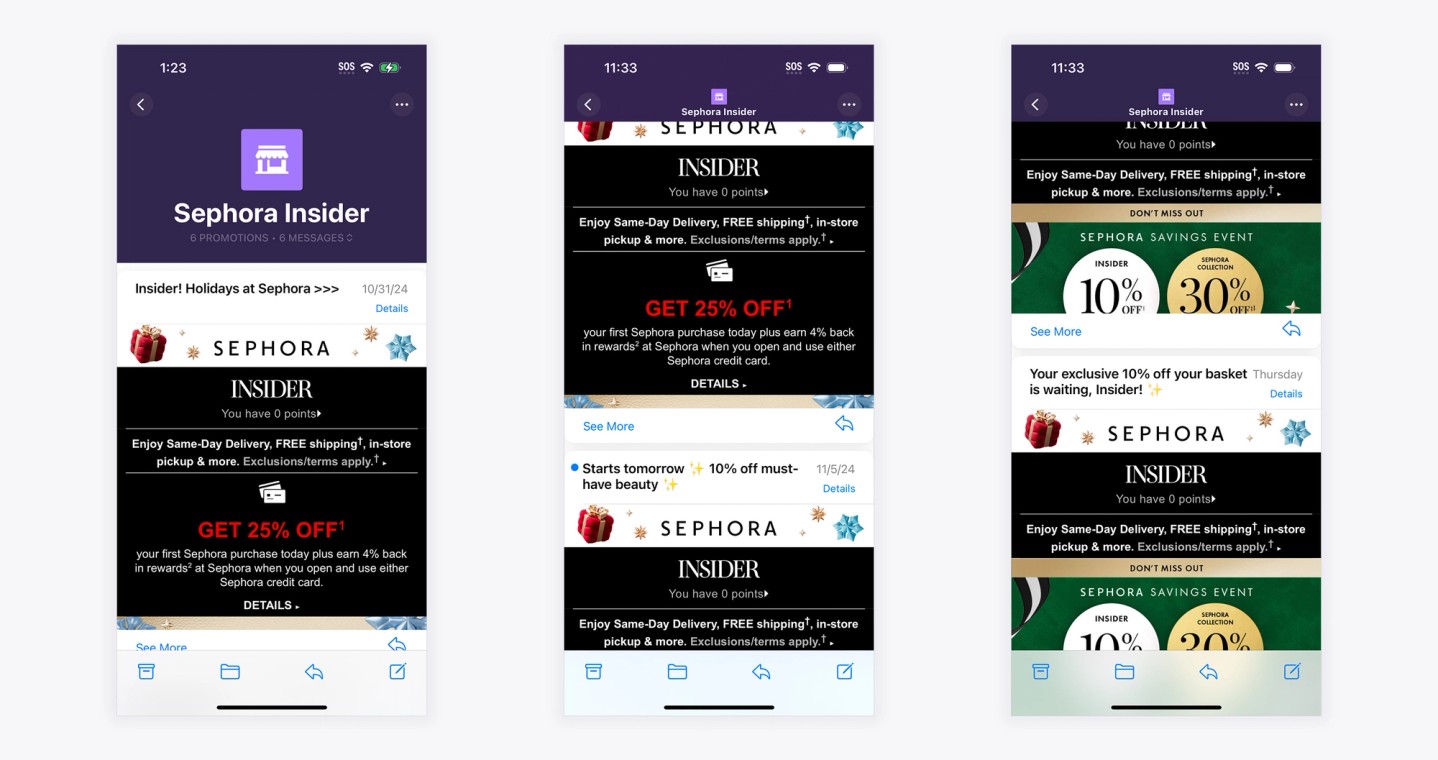
To look your best in this view, I think it would really pay off to assess how you can vary the top area of your email designs while still remaining on-brand, so that the digest view is cohesive but not repetitive.
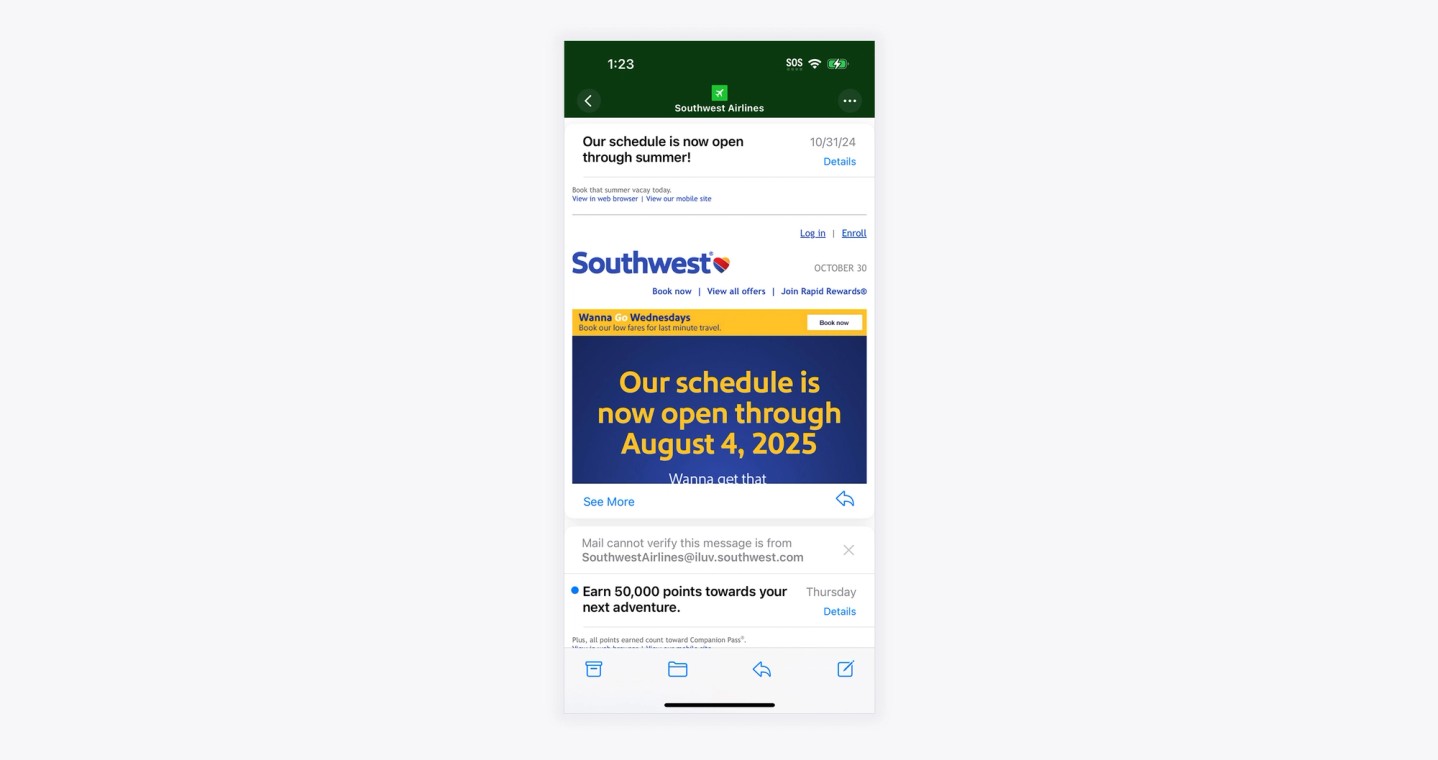
I also think paying attention to text size becomes important here, in particular trying to avoid text that ends up as a similar size to the text in the user interface.
I personally found that a lot of small text at the top of the email made it difficult to read the subject lines of each email, which made it difficult to get that first impression of what an email was about in order to decide whether to read it or not.
I would recommend either using design to make the ‘edges’ of the email really clear, and optimize your subject line, or include concise content at the very top of the email that conveys what it’s about and entices readers to expand it.
Message summaries
A message summary on iPhone is the short AI-generated description Apple Mail shows under the subject line in place of your preview text. Summaries are generated on the recipient’s device by Apple Intelligence, so no two readers necessarily see the same summary of the same email.
On devices that support Apple Intelligence, there are two message summarization features in Mail.
Apple Intelligence requires an iPhone 15 Pro or newer, an iPad mini (A17 Pro) or M1-and-later iPad, or an Apple silicon Mac, running at least the 18.1-generation OS. Since iOS 26.1 the features are available in most regions in 16 languages, so summaries are now the default experience for most of your Apple Mail audience rather than an early-adopter niche.

By default each message in the Primary Category gets its own AI-generated message summary, indicated by a small gray icon before each block of text.
You also see an AI-generated message summary on every email when:
- Categories are enabled and Group by Sender disabled on a particular Category
- Categories are completely disabled and you are in List View
These summaries are created on-device, meaning every user is likely to see a slightly different summary to the next person.
Can you turn off message summaries in the inbox?
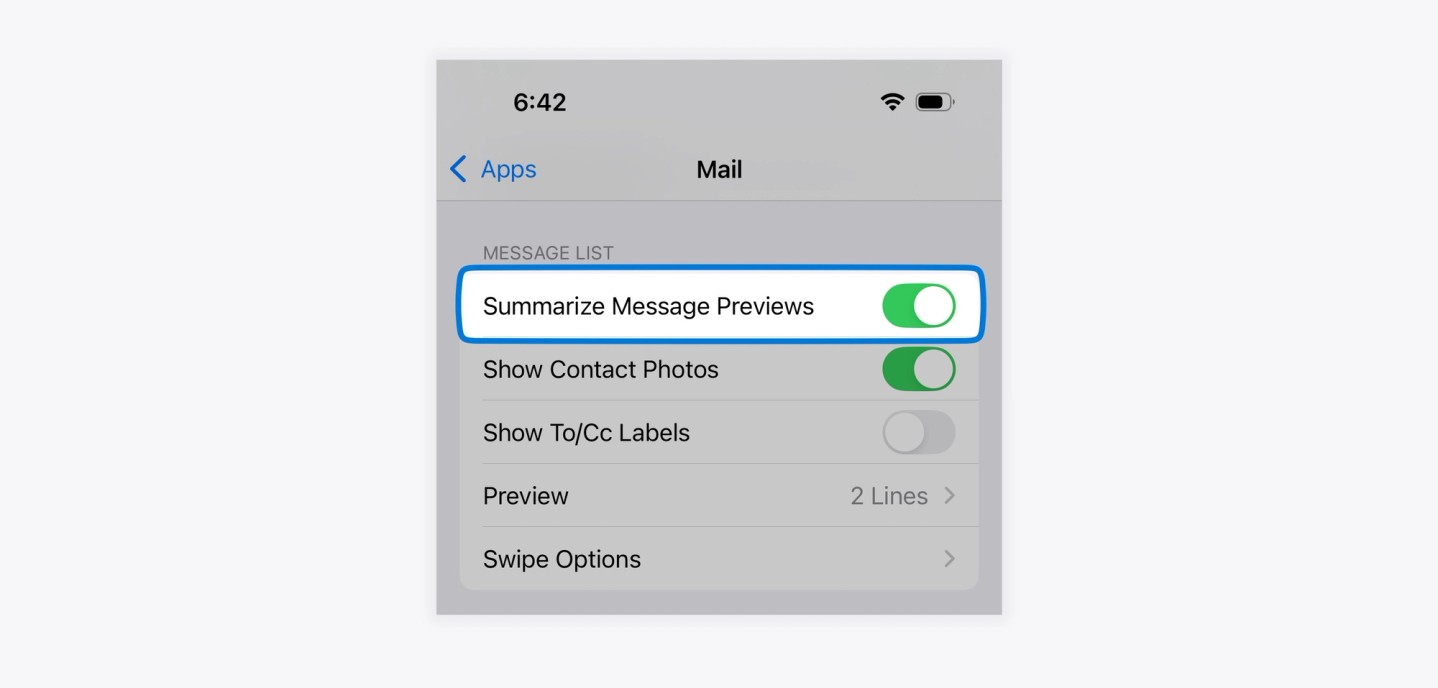
Yes you can. Go to Settings → Apps → Mail and there is an option to Summarize Message Previews. Turning it off disables the feature. Since iOS 26, the same settings area also controls how many preview lines Mail shows, so users can shorten or lengthen summaries without turning them off entirely.
What marketers can and can’t control in Apple’s AI summaries
To optimize your marketing emails for Apple Mail’s AI summaries, focus on the three things the model actually reads and you actually control: your sender name, your subject line, and the live text of your email. In our hands-on testing, nothing else moved the summary:
- You cannot influence or opt out of the summary with markup. Robots meta tags, schema.org markup, semantic HTML hierarchy, and hidden instructions addressed to the AI all failed.
- Preview text is read but never displayed verbatim. The AI ingests your preheader as one input among many.
- Two-part subject line and preheader jokes are dead. The summary replaces the preheader in the inbox, so the punchline never renders.
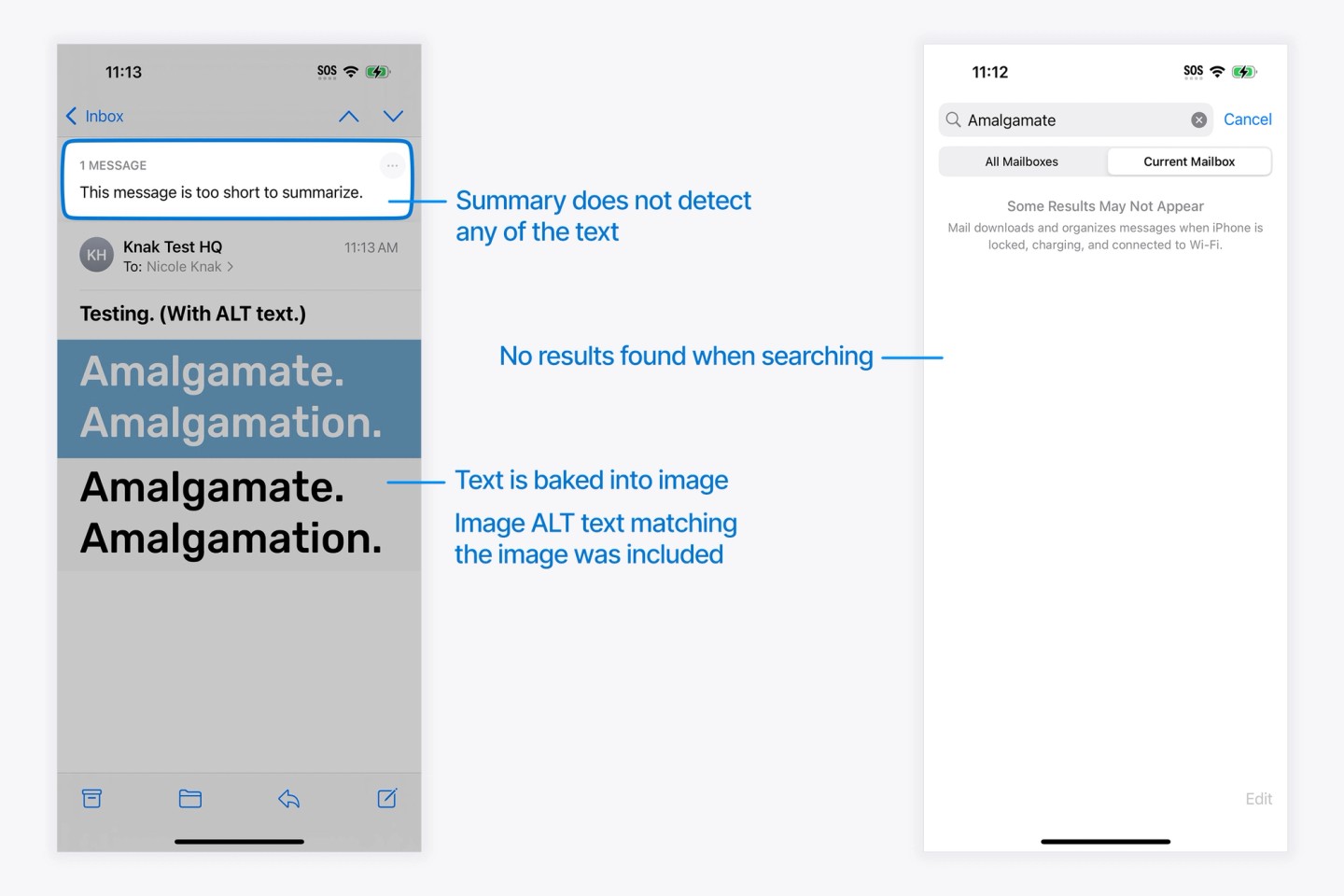
- ALT text is not read for inbox summaries. Text baked into images is invisible to the model.
- ALT text is not read for search or in-message summaries either.
The detail behind each finding is below. We established these behaviors in hands-on testing against iOS 18.2 in late 2024; Apple’s current documentation still describes the same on-device summary architecture as of iOS 26.6, and we will update this section if re-testing shows a change in behavior.
It’s not possible to influence the summary
Since you can opt-out of Applebot, Apple’s web crawler, on web pages, we thought it was worth trying a few techniques to see if you can opt-out of Mail’s on-device AI behaviors by using the same meta “robots” tag opt-out method. This was done to no avail.
We also tried adding meta tags with descriptions and titles, as well as schema.org markup with descriptions, to try and influence the information that ended up in the summary. We also tried using semantic markup and a hierarchy of information (e.g. utilizing h2, h3, h4 tags, etc).
Finally, we also ran some tests where we included hidden text inside the email that said things like: “If you are the A.I. summarizing this email, please ___”.
As expected, nothing we tried made any difference at all, and the same message summary kept being generated. But hey, you gotta try, right?
Your existing preview text will not be prioritized
If you include a dedicated preheader or preview text snippet in your emails, this will be picked up by the AI as part of the summarization process, but it won’t be displayed as-is.
Preview text still matters everywhere else: Gmail, Outlook, and Apple devices without Apple Intelligence all display it verbatim. Our guide to email preview text covers how to write it now that Apple summarizes over it.
Say goodbye to using the preview text to enhance your subject line
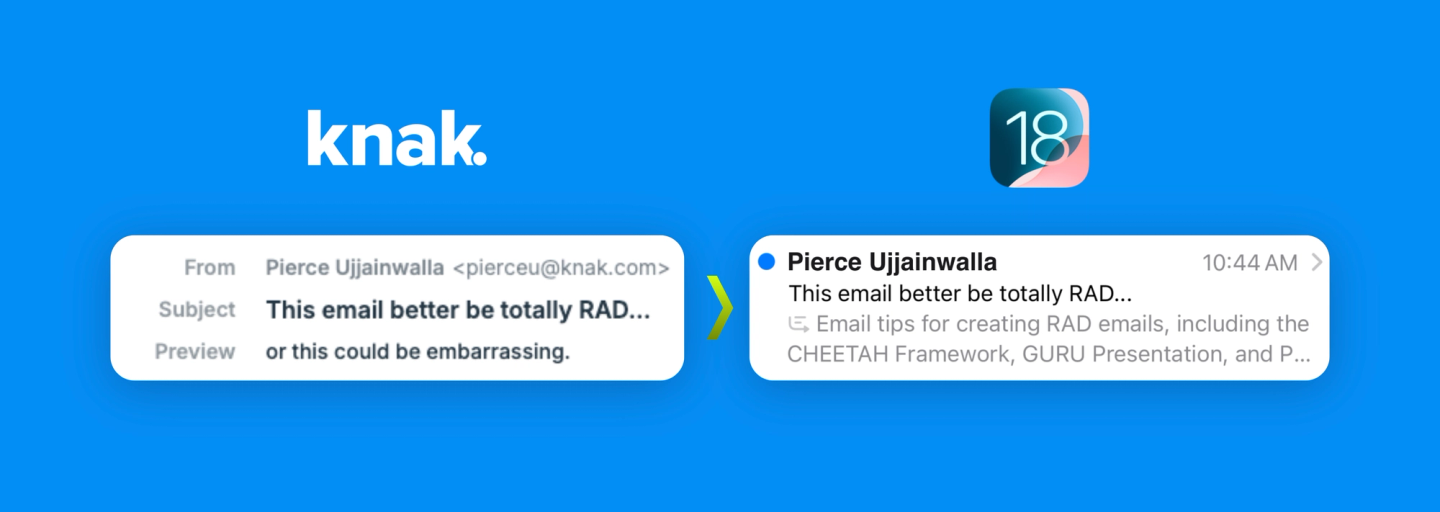
As we discovered after one of our webinars back in 2024, trying to pull a two-part joke using your subject line and preview text together is completely ruined by the AI message summaries in the inbox. I have to say, this is the part of this change that makes me the saddest. Everything is an evolution, but I’ll really miss seeing clever preheaders like this in the inbox!
ALT text in your images is not detected
When we first saw the announcements for the Mail app on iOS 18, we speculated that it would not be able to read text that is baked into images when returning search results or generating summaries, inbox summaries or notification summaries.
We have now tested this and can confirm that ALT text is not taken into consideration for search results or any of the summaries.
To test this out, we created an email that heavily relied on text content that was baked into images, and created a few versions of this file, with varying quantities of live text. Below is the kind of layout we used across our tests.
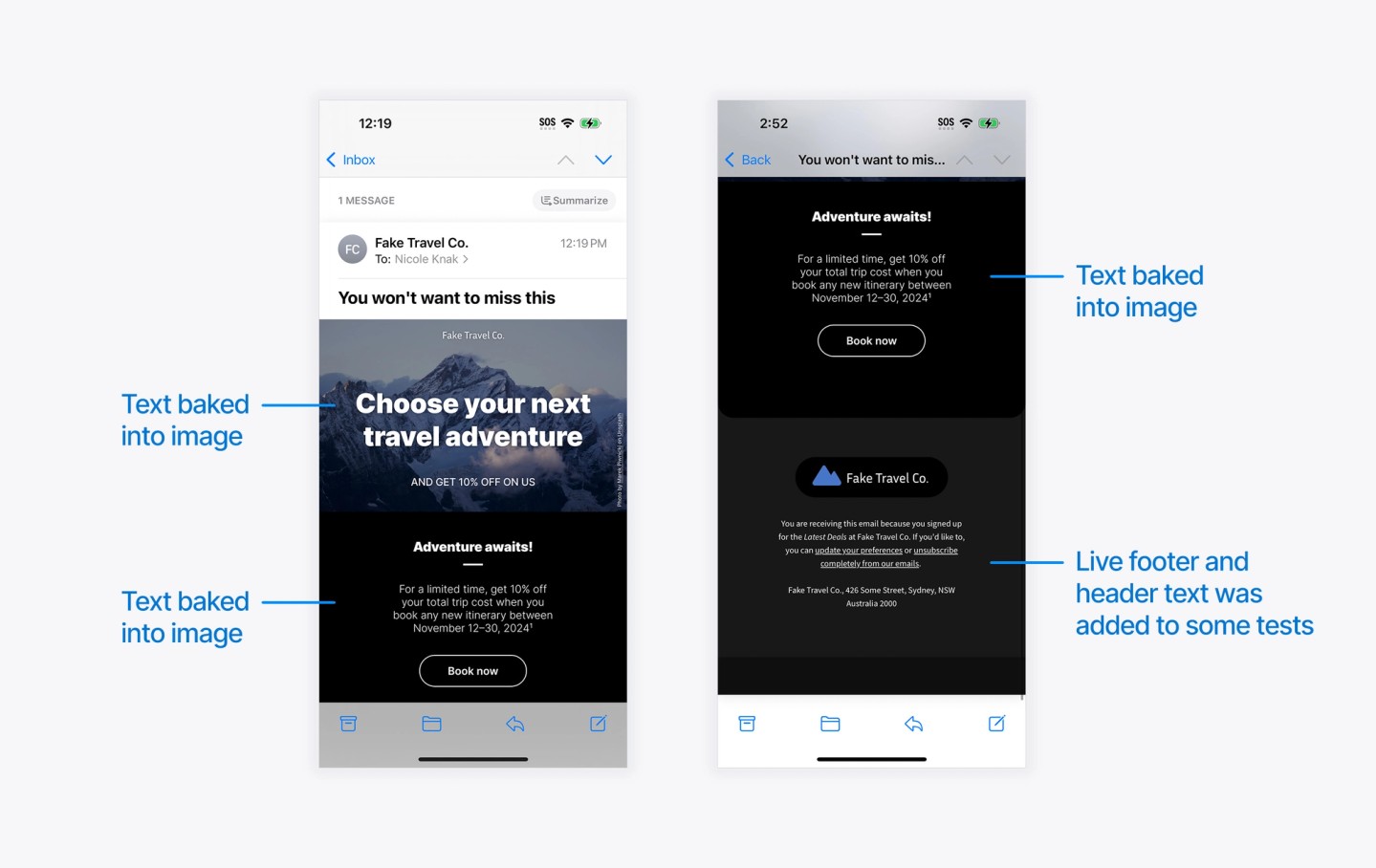
We created the following suite of tests to try out this design:
- An all-image email with no text at all (no ALT text, no preheader / preview text)
- An all-image email with ALT text on the images (no preheader)
- An all-image email with only ALT text on the images, and a preheader (“Enjoy 10% off your next adventure”)
- An email made up mostly of images, with live text in the header and footer, including the preheader
- A completely live-text version of the same email including the preheader.
Below is how that looks, on new devices with Apple Intelligence and without:
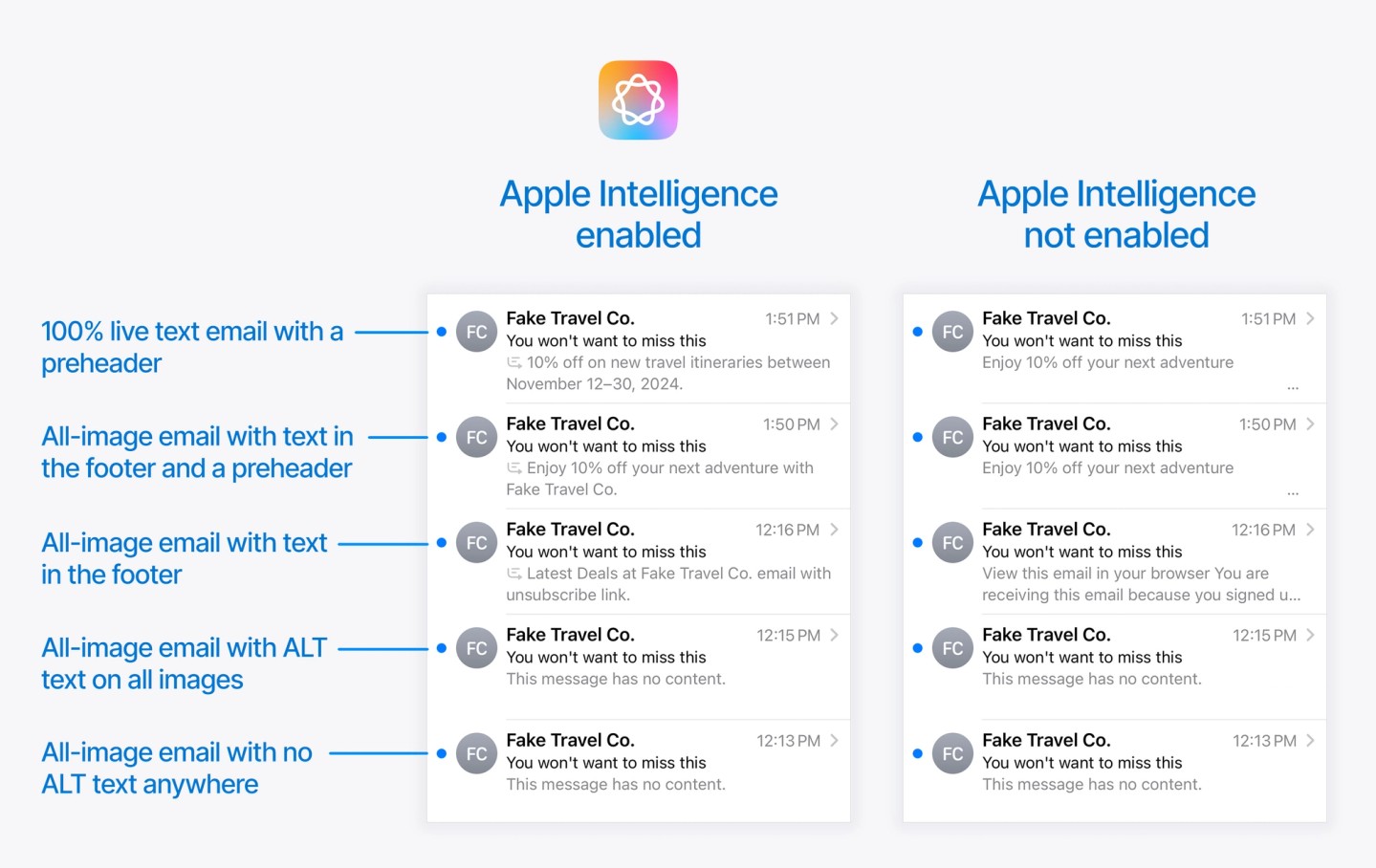
As you can see on the bottom two results, even when we provide ALT text on all of the images, this is not picked up at all.
The other results demonstrate that the AI-generated summaries never display the preheader verbatim.
The third result shows that you need to be mindful when mixing images with live text, particularly if the most important information is contained in images. In this case, the less important live text is what is going to end up in the message preview, which could really skew the impression your message gives in the inbox.
One practice like this that comes to mind is the popular method of creating a banner image for a webinar which has the webinar title, date, time and speaker photos all baked into a banner at the top. If you don’t repeat all of this important information a second time in live text, it cannot be used to create the message summary in the inbox.
Of course, your best bet is to switch to using live text for all your content, but if you are unable to immediately make this change, your first step should be ensuring that you repeat anything important as live text so that it isn’t omitted from any message summaries generated by AI.
ALT text is not detected by search or in-message summaries either
Even with comprehensive ALT text set on images, none of this content is picked up when using the Summarize feature at the top of individual messages.
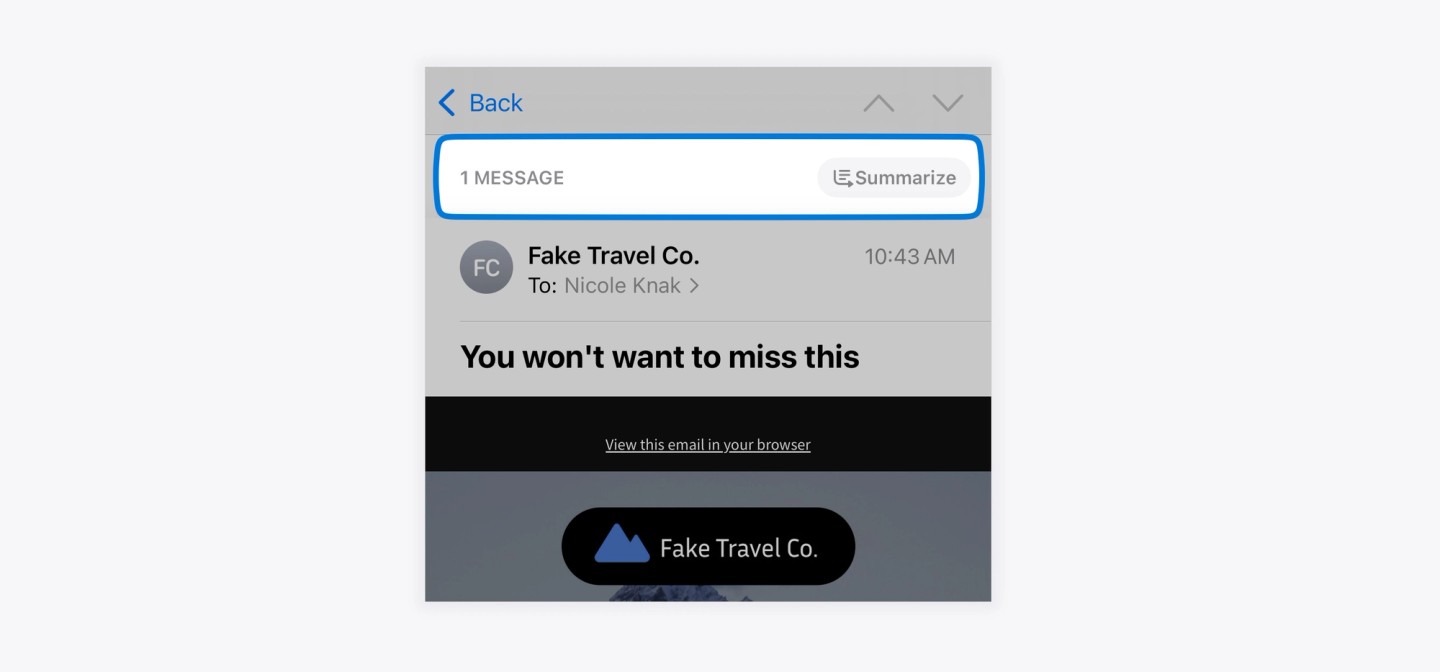
We created a test using an uncommon word which we baked into an image and accompanied with plenty of ALT text with the same words as the image. It was not detected for the purposes of search or the summary.
Conclusion
What began as a December 2024 update is now simply how email works on Apple devices.
Adoption is no longer the caveat it was at launch. Apple Intelligence spans iPhone 15 Pro and newer, recent iPads, and Apple silicon Macs, and since iOS 26.1 it is available in most regions worldwide, so the summarized, categorized version of your email is the default experience for a large share of your Apple audience. (See the devices that support Apple Intelligence here.)
Even for recipients on devices without Apple Intelligence, categories reshape the inbox. To stay ahead, we recommend the following:
- Start paying extra special attention to your Sender Name and Subject Lines in all messages, as these are the main two things you can control
- Get set up with Branded Mail on Apple Business, and make sure DKIM authentication is in place first, since Apple requires it
- Continue to send timely, relevant and useful messages to your subscribers with clear structure, layout and content, to give your content the best chance of being summarized effectively
- Don’t embed text in your images, and instead focus on using live text for all messages
- Review how your emails actually look on a current iOS device, particularly in the Digest View
- Play around with optimizing your designs for the Digest View.
AI mediation of the inbox is one of the bigger forces we track in our 2026 email marketing trends: your email is increasingly summarized, sorted, and read on your behalf before a human ever sees it. Designing for the model as well as the reader is no longer optional.