
Apple’s latest Mail and Apple Intelligence capabilities change more than the inbox interface. For subscribers on iPhone, iPad, and Mac, they change how email content is indexed, summarized, retrieved, and turned into actions across the operating system.
The new Siri with Apple Intelligence is the deepest AI integration with an operating system that we’ve seen so far. Siri AI is starting to look more and more genuinely useful. So if your emails aren’t visible to Siri AI, there’s a chance they will become less visible to users, too.
And because Siri can act on an email without it being opened, some of that engagement won’t show up in your open rates. For marketing ops teams who build, code and QA emails, that makes this a production question, not just a design one.
While Siri AI is still in beta, we got in early and have been putting it through its paces.
Here’s our take on how emails behave with the AI inbox and operating-system tools, covering images, alt text, which content these systems actually use, how to structure your email, and more.
The short version: in our tests, Siri and Apple Intelligence relied on the live HTML text in the email body.
- Text baked into images was invisible to search, summaries and suggestions unless the email was open on-screen.
- Alt text made no difference.
- The preheader was used by some features and ignored by others.
- HTML was used over the plain-text part.
By live text, we mean real, selectable HTML text—not text inside images, and not Apple’s Live Text feature, which reads text from images on-screen.
A note on availability: Siri AI launched in English and now also works in French, Japanese, Korean, Portuguese, and Spanish. It isn’t available in China, or on iPhone and iPad in the EU (EU users can use it on Mac).
What hasn’t changed: AI summaries and inbox tabs
These changes aren’t new in macOS 27 or iOS 27 (they arrived with iOS 18.2 and macOS 15.4) but they still affect how all this additional processing works. Everything is cumulative. The advice for these earlier changes remains relevant; now you need to build on it.
AI-generated summaries
All of these features were enabled by default on compatible devices running iOS 18.2+ or macOS 15.4+. They remain part of macOS 27 and iOS 27.
- AI-generated pre-open summaries replace preheader text in the inbox view.
- AI-generated pre-open summaries appear in notifications on home and lock screens.
- AI-generated post-open summaries are also generated inside the email when the user selects “Summarize.”
The advice here has been to use live text, clear content, and a strong hierarchy to support accurate content extraction and summarization.
As we’ll see below, these features work only with live-text HTML content — not images, text baked into images, or alt text. So the advice hasn’t changed.
Tabbed inbox and categorization
Mail sorts messages into Primary, Transactions, Updates, and Promotions, with an All Mail tab. This has been available since iOS 18.2 and macOS 15.4 and remains in place.
The recommendation when these categories were introduced was to keep messages focused on a single purpose so they can be classified effectively. Mixing categories of content can reduce the chance of an email appearing in the correct tab. Accurate categorization also makes an email eligible for current and future specialized actions and behaviors in macOS and iOS, such as extracting delivery details from package notifications. Single-purpose messages are also more likely to be summarized accurately.
What’s new in macOS 27 and iOS 27
iOS 27 and macOS 27 add four key features that matter for email:
- Siri AI — a major change across the entire OS
- On-screen interactions
- Voice and text chat interactions
- Questions and actions: users can summarize emails, ask for specific information, or even request bulk actions such as deleting all emails from one sender.
- Search in Mail — completely rebuilt so Siri AI can find and retrieve content, and now includes natural-language search.
- Contextual Suggestions — suggested actions shown alongside messages, based on email content — for example, “Add this to shopping list.”
- Call Context — surfaces details found in Mail, Wallet, and other apps while a user is on the phone with a business.
The overarching change to notice: Siri can now act on emails without an open
Since Apple partnered with Google in January 2026 and incorporated Gemini’s capabilities into the Siri AI product, Apple Intelligence has become much more capable and genuinely useful.
Unlike Copilot in Windows, which is a standalone app, Siri AI is built into the operating system itself. It can be invoked from, and take action from, anywhere. Therefore, all senders, whether B2C or B2B, need to take note.
In macOS and iOS 27, Siri can read incoming messages first, then surface and extract data on its own, for example, identifying a reservation time in an email and automatically creating a calendar event.
This means more actions can take place without a single open being registered. It may also reduce the likelihood that many emails are opened at all, because Siri can extract and act on the important details for the user. That said, it’s worth noting that Siri does usually offer to open emails that appear as part of a conversation result, which may lead to increased opens.
This process of opening, filtering, extracting, and exposing data powers the new features above. Here’s how each one works with email.
Siri AI
Siri AI can be invoked from anywhere on both macOS and iOS, by voice, by using shortcuts, or by opening the app and typing to Siri. Conversations are logged in the Siri app.
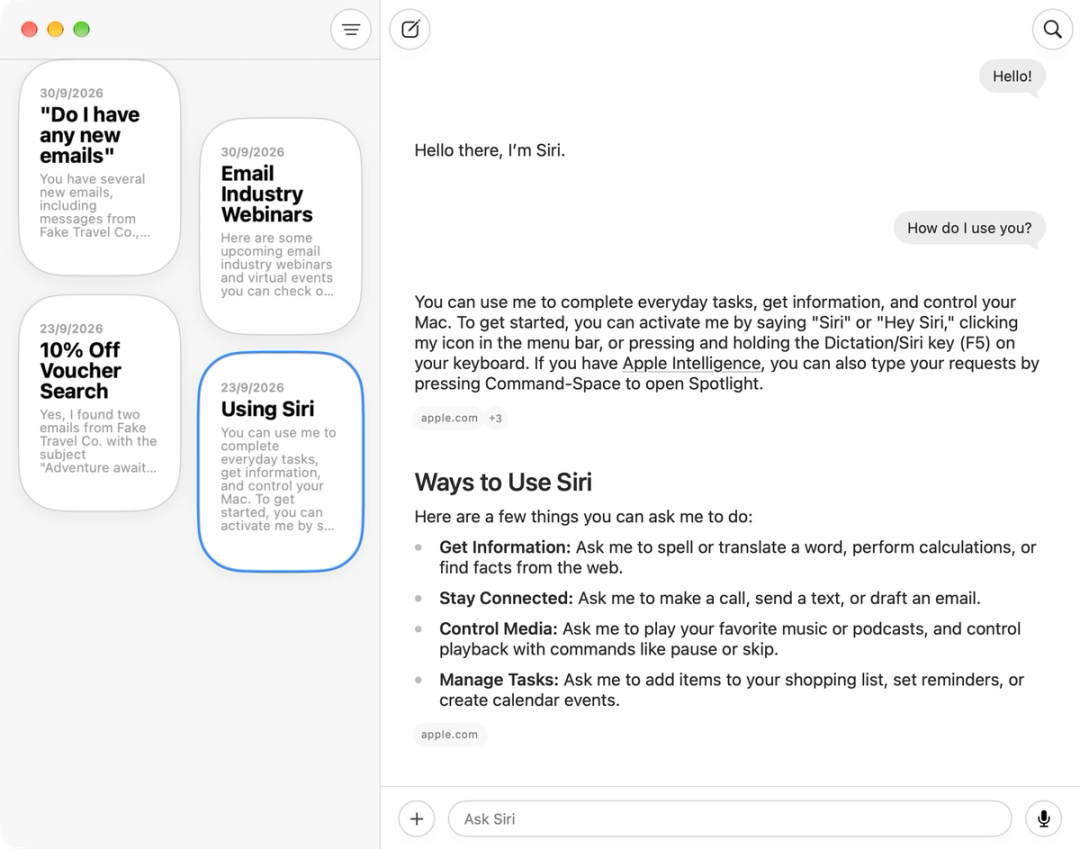
The Siri App on macOS, showing chat history.
On-screen
Like other visual AI assistants, Siri AI can be asked about any content that is currently visible on-screen, including of course, emails.
In the inbox list on iOS
Mail on iOS includes a dedicated “Ask Siri” feature for emails. Users can long-press an email and select the option to target the email and ask specific questions or invoke actions which will specifically target the selected email.
For email, Siri can summarize a message, find a specific item, track a package, check a booking, save a photo, take bulk actions such as deleting all emails from a sender, or extract information and place it into Notes or Reminders.
This means people may interact with your emails later, and over time.
In our tests below, all of this worked only with live HTML text. So the more of your content lives in clear, real HTML text (and the less you bake into images), the more Siri can do with it.
Search in Mail
Apple has introduced a completely overhauled search system designed to support two major improvements.
Natural-language search
This hasn’t been available in Mail apps before, and it’s powerful and effective. It also helps Siri find emails in the inbox so it can act on them.
Indexing and ranking
Emails are constantly re-indexed on-device so results can surface more quickly. Apple has also overhauled the ranking algorithm to produce more accurate and predictable results by prioritizing intent and relevance over recency and keyword matching.
“Search results that come up in Mail are more relevant than before, so you find exactly what you’re looking for. […] If you search for ‘Sprouts’ because you want to find a recent order, it’ll show your order before it shows marketing emails you might have from the same retailer.” — MacRumors
This suggests that Apple’s systems can distinguish information people may need urgently, such as transactional details or promotional codes, from content that is less time-sensitive. To make that classification possible, keep email content clear, concise, and focused, with subject lines and body copy that make each message’s purpose easy to identify.
Contextual Suggestions
Contextual Suggestions are another feature shaped by how Siri AI processes email content.
When an email includes content like a flight or event confirmation, a small button appears above the email content prompting you to take one-tap contextual actions such as ‘Add Event to Calendar’.
They can use only the text exposed to Siri AI — and, based on all our testing, that means the HTML content.
Call Context
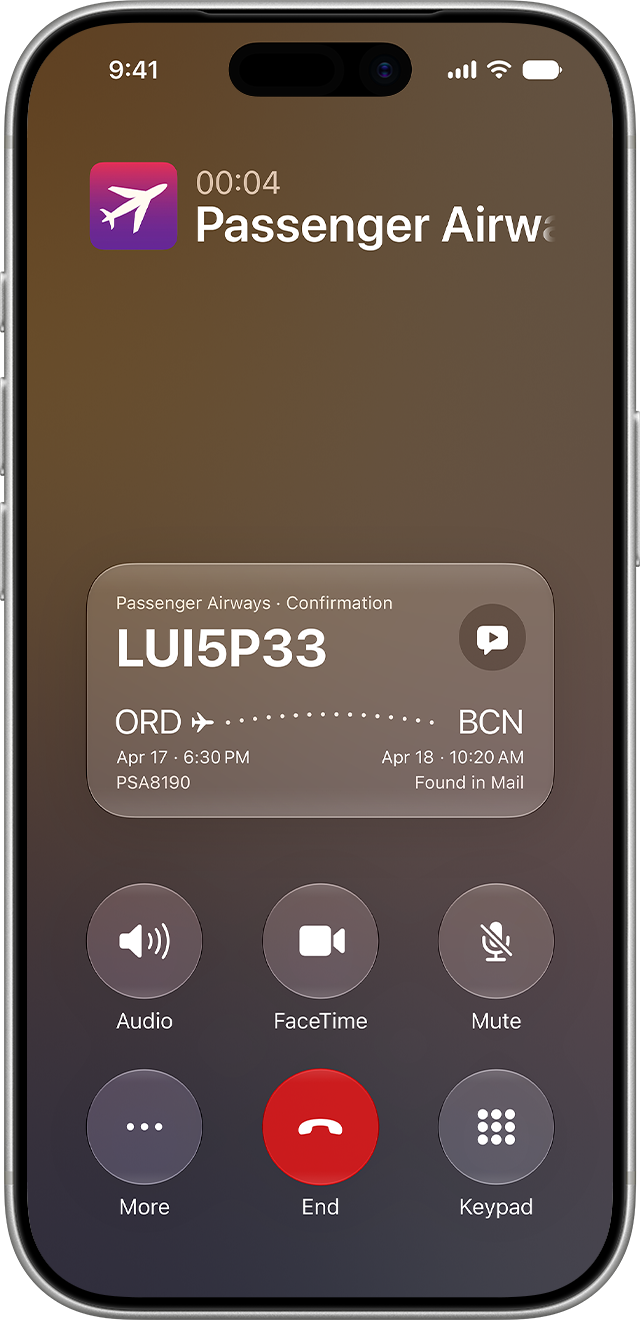
iOS 27 Call Context card showing a flight confirmation found in Mail during a call
Call Context is similar to the Magic Cue feature available on Google Pixel devices since late 2025 and the Samsung Galaxy Call Brief feature released in July 2026.
According to Apple Support, when you are on the phone with a business, Apple “uses the phone number you dial to identify the business, then searches Mail, Messages, Wallet, and Calendar for related information. During the live phone call, refer to the Call Context card details that might appear on your screen.” Long story short: It doesn’t listen to the live call audio. It’s an automated on-device search tied to the business name.
This increases the need for well-structured emails using live, selectable text, particularly for numbers and dates.
Again, this feature relies on the type of content that appears in summaries and is accessible to Siri AI. In all our tests, that was only the HTML content.
Call Context is available only on phones that support Apple Intelligence.
What can Siri AI read in marketing emails? Our iOS 27 and macOS 27 tests
With these changes in mind, we examined how content is treated by Apple’s extraction processes so you can understand how to structure your emails for the best results.
All tests used the same fictional sender, Fake Travel Co., promoting a 10% travel offer, sent to Apple Mail on iOS 27 and macOS 27 with the Siri AI beta enabled. We varied how the email was built: all images with no alt text, all images with alt text, a preheader that differed from the body, full live text, and a plain-text part that differed from the HTML.
We tested several important questions about AI inbox behavior:
- Can Siri read text baked into images?
- Is alt text referenced?
- Is the preheader or hidden preview text referenced, and does it receive any priority?
- Is plain text or HTML prioritized?
The results are below.
Can Siri AI read text baked into images?
Apple Intelligence can perform optical character recognition (OCR) on images only when they are physically on-screen.
We tested an all-image email with no alt text to see what Siri could extract.
Results:
- Sorting, summarizing, search, and retrieval all failed.
- Reading and OCR succeeded only when the email was on-screen.
With the email on-screen, we asked Siri what it was about, and it was able to tell us:

Siri AI on iOS 27 reading an image-only email on screen using OCR
Outside Mail, however, when we asked Siri to find the email containing a 10% travel voucher, it was unable to find it and stated that “the body is empty”:
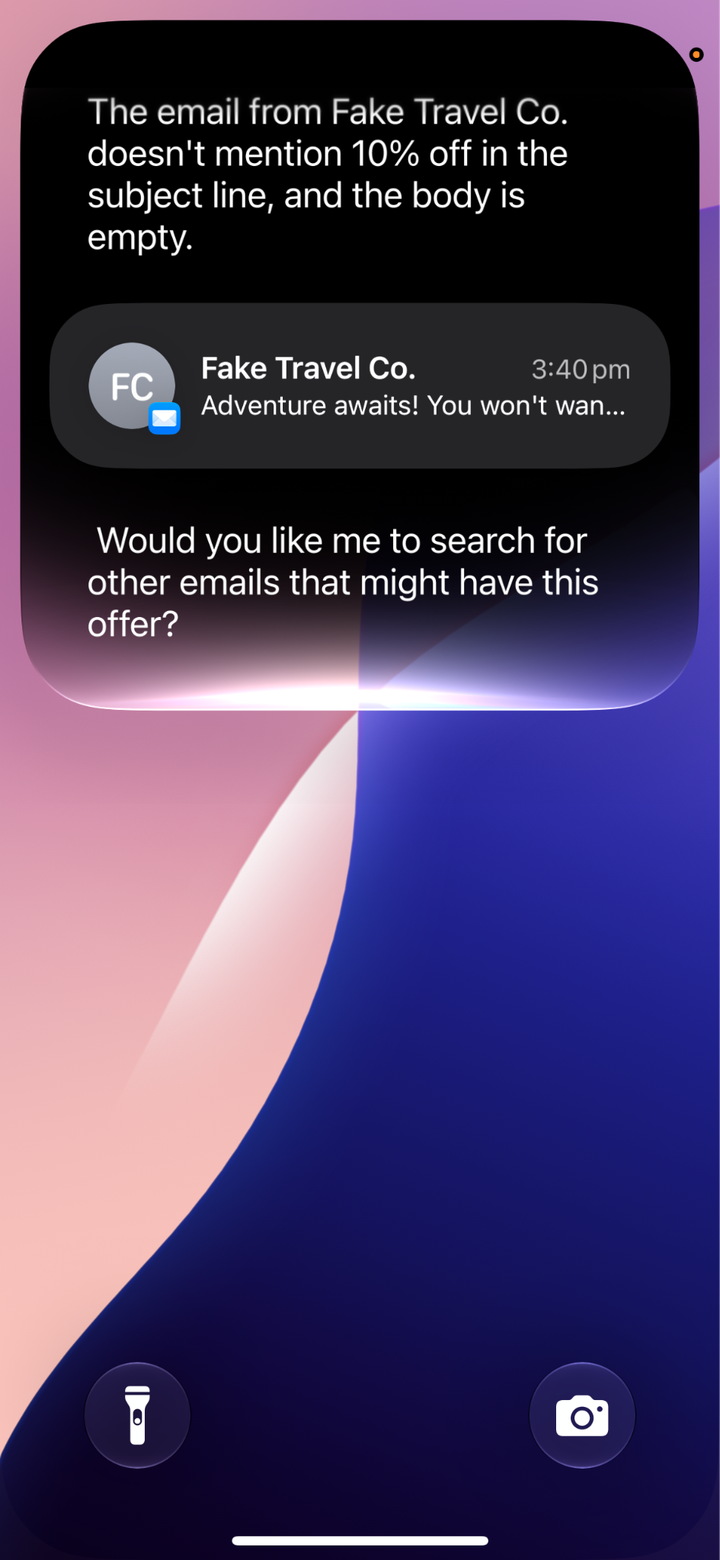
Siri AI on iOS 27 unable to find an image-only email, reporting the body is empty
The email also failed to generate a summary in the inbox or when opened:

Apple Intelligence on iOS 27 unable to summarize an image-only email
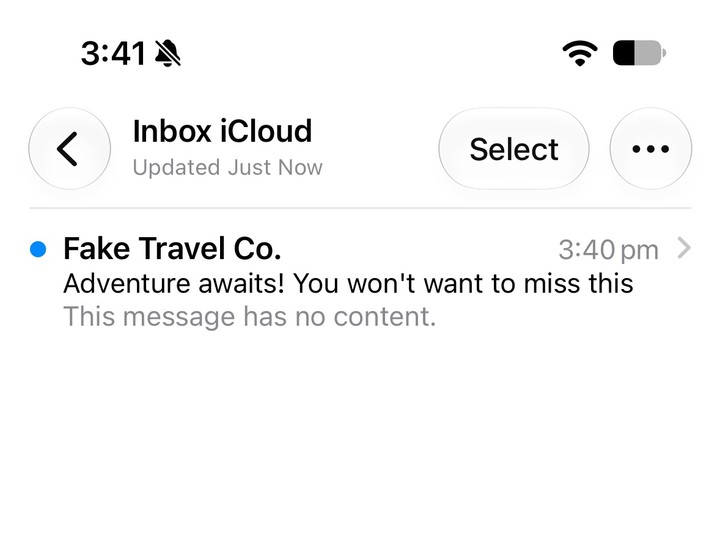
iOS 27 Mail inbox showing no AI summary for an image-only email
Can Siri AI read alt text?
No. We repeated the tests above with alt text, and it made no difference. Siri AI still believed the body was empty.
The results in iOS were identical to those from the test without alt text.
This means that relying on all-image emails with alt text is not enough to ensure your content remains usable, retrievable, and reusable over time.
Alt text is non-negotiable for accessibility. It simply cannot substitute for live HTML when Apple Intelligence needs to index, summarize, or retrieve the message.
Does Siri AI read the preheader?
Siri and Apple Intelligence do reference the preheader. You should still include one as normal, with a concise snippet of content you want recipients to see first in the inbox. Apple Intelligence may use it as part of the content it summarizes.
Sometimes there's advice that the preheader should contain a separate, specially optimized piece of content. One warning: it isn’t always treated the same way as visible live content.
We ran several tests in which:
- The preheader referenced a 14% offer for Asia, Australia, and New Zealand.
- The main body referenced a 10% offer for the UK, Europe, and the Americas.
Across both macOS 27 and iOS 27, most Siri responses and summaries referenced both details: the offer in the preheader and the offer in the live-text body. For example, this is Siri AI responding when we asked, “What is this email about?”

Ask Siri on iOS 27 summarizing both the preheader offer and the body offer
However, when we used the “Summarize” button at the top of the message in iOS 27, Apple Intelligence prioritized the HTML body and ignored the preheader. It mentioned only the 10% offer and did not reference the preheader content at all.

iOS 27 Mail Summarize action ignoring the preheader text
This shows that hidden content such as the preheader is not guaranteed to be incorporated into every AI action as expected, and the behavior may change over time.
So this is a good reminder to be wary of advice to put specially optimized content in the preheader so AI tools pick it up first. It doesn’t reliably work. And it is also worth considering the potential confusion caused when an email appears in search results with content that differs from the message body.
How does Siri AI behave with full live text and standard HTML content?
This is where everything works as expected. Siri and Apple Intelligence can read the whole message and use it anywhere in the operating system.
We tested a more complex email with a standard subject line, a short preheader containing hidden text at the top, and full live-text content throughout, with content all related to travel and flights to Phoenix, Arizona.
With this format, the information could be used across all Siri interactions, including complex requests to Siri — for example, “Should I travel to Phoenix?” produced suggestions to use recent relevant offers in the inbox, as long as the key details of those offers were expressed in live text.
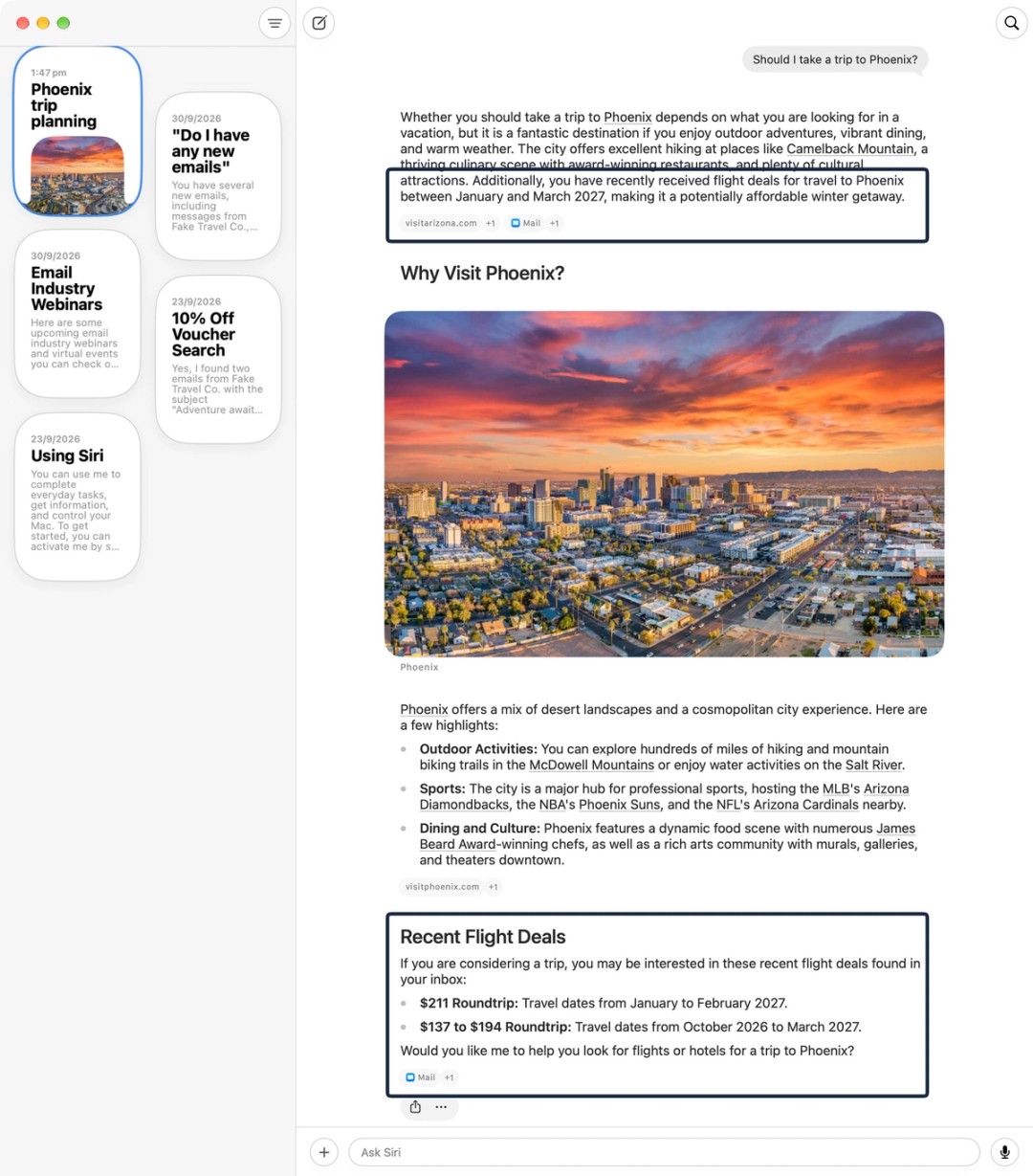
Siri AI on macOS 27 answering a Phoenix trip question using flight deals from emails
All our test emails comprised fully of live, selectable text could always be summarized successfully:

Apple Intelligence on iOS 27 summarizing a live-text email
They could also be found easily by name from elsewhere on the device. When we invoked Siri AI on the home screen of iOS and asked for a recent email offering 10% off travel, Siri found it immediately:
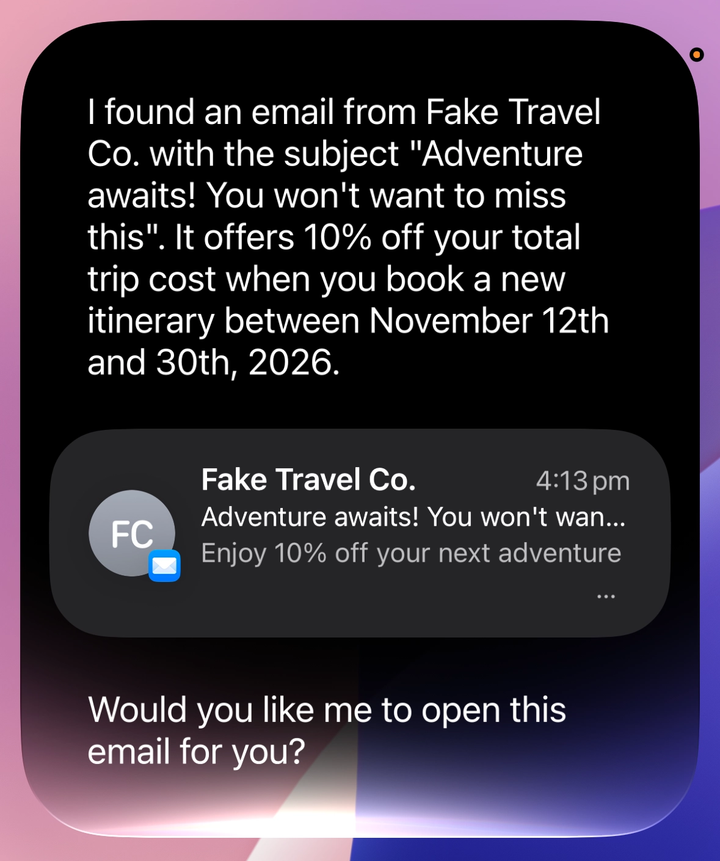
Siri AI on the iOS 27 home screen finding a live-text email offer
This level of detail was only possible with the full live-text email.
Is plain-text content treated differently from HTML by Siri AI?
Yes. Siri AI uses the HTML part, not the plain-text part. There’s also popular advice that your plain text email is somehow prioritized over the HTML version, and that it can be used to optimize your email’s performance in the inbox, but our tests showed the opposite.
We ran a test in which the plain-text MIME part used completely different copy from the HTML.
The plain text part advertised a Sneakertown sale offering 29% off sneakers on 29 September only.
The HTML part contained the Fake Travel Co. content from the previous tests, including the 10% offer.
When we tested search and retrieval in Siri AI, it could not find the Sneakertown details from the plain text version:
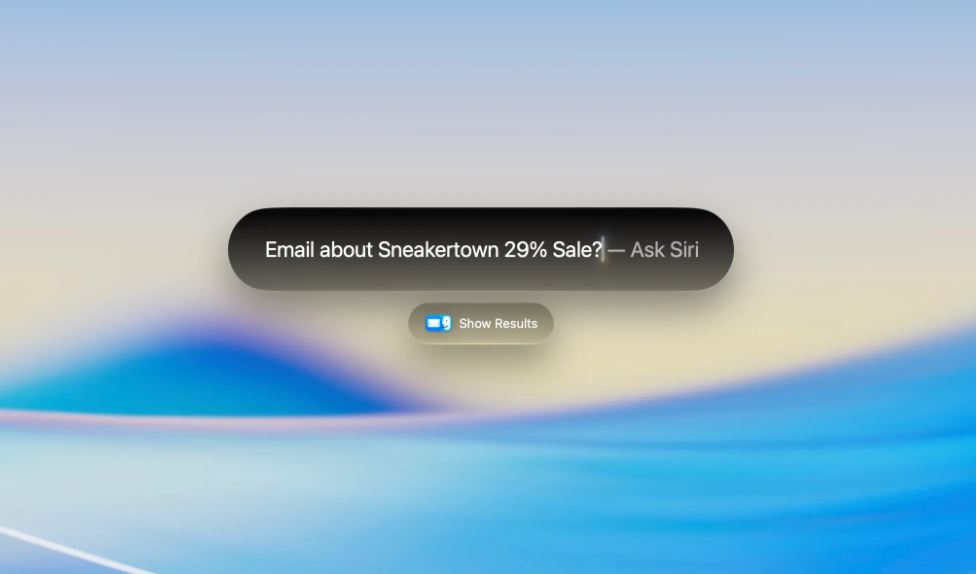
Siri AI on macOS 27 searching for an offer only in the plain-text email part
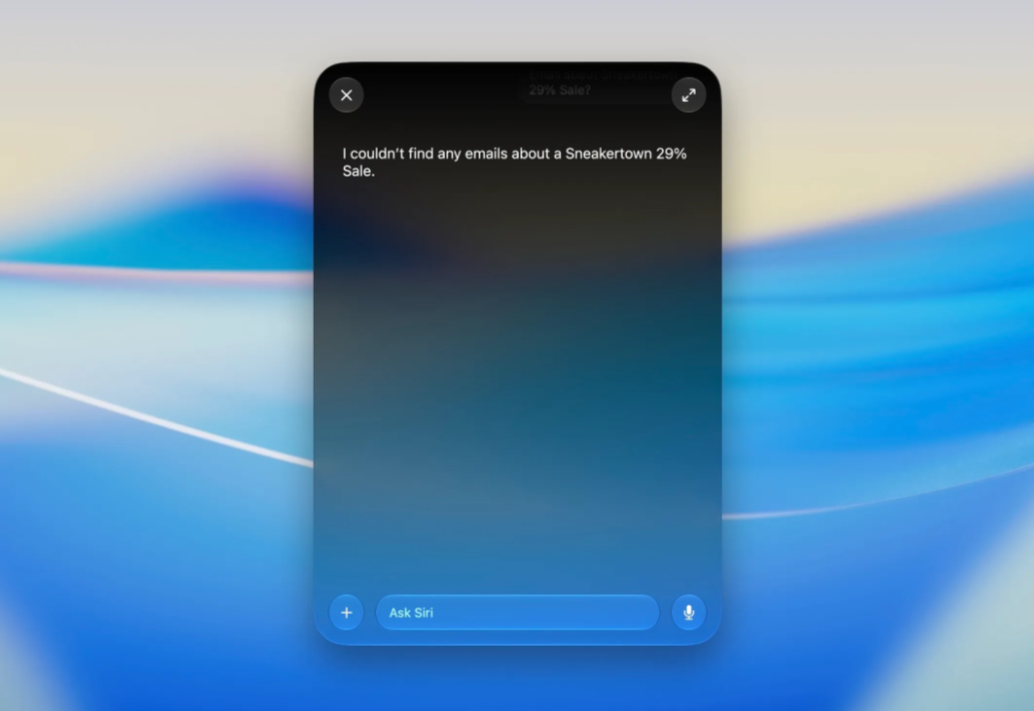
Siri AI on macOS 27 unable to find plain-text email content
However, Siri AI could retrieve the HTML details about Fake Travel Co. without difficulty:
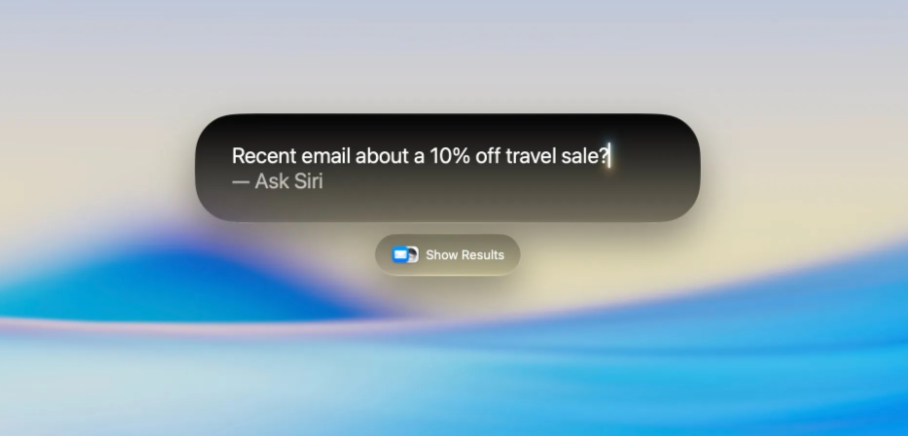
Siri AI on macOS 27 searching for an offer in the HTML email part
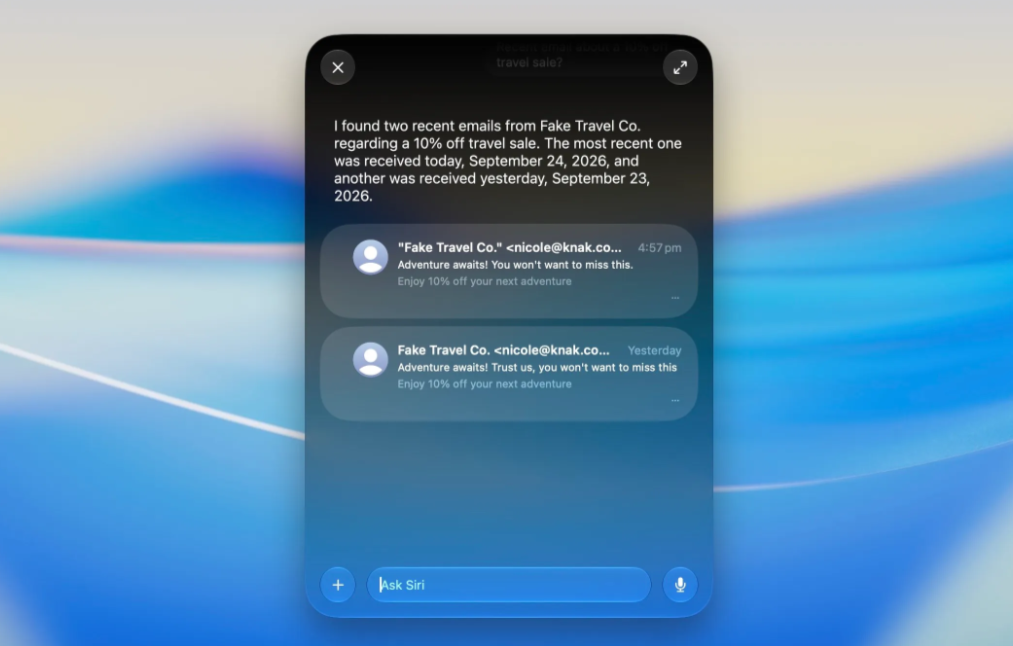
Siri AI on macOS 27 finding the HTML email offer from Fake Travel Co.
This shows that Siri AI prioritizes the email’s HTML over its plain-text part when present, so senders should optimize accordingly.
Keep sending a plain-text part. Just keep it consistent with the HTML, as you do today.
There’s no need to place unique or contradictory information there, or treat it as any special kind of optimization layer for Siri.
How to optimize marketing emails for Siri AI: a checklist
Apple’s AI features mainly use live HTML text to summarize emails, search for information, and suggest actions.
In our tests, they could read images only when they were on-screen, did not use alt text, used preheader text inconsistently, and prioritized HTML over the plain-text version.
Even though a lot of the behaviors are new, the advice from the past few years has remained consistent. Add these to your email build and QA checklist:
- Build key information as live and selectable text in the main email body.
- Structure information clearly for AI to process: use semantic HTML elements like headings (h1, h2, and so on), paragraphs, bulleted or numbered lists, and data tables. Using these elements in Knak will always generate the fully semantic HTML output.
- Use images for visual presentation, not as the only source of information.
- Keep the HTML, preheader, and plain-text MIME part consistent.
- Continue writing useful alt text for accessibility, but don’t treat it as a substitute for visible text.
- Always put dates, prices, codes, booking details, and other actionable information as live, selectable text, and don’t bake them into images.
- Keep your sender name consistent, and make sure your subject lines are clear and accurately describe the content.
Now is the time to get the foundations right. As Apple builds more AI into how Mail reads and acts on messages, email will only get more complex — so the better prepared you are now, the easier it will be to adapt.
See how Knak builds semantic, live-text HTML emails by default.