

A good tour guide in Rome does not run the same tour for every group: the ancient-history buffs get the Forum and the art lovers get the Galleria Borghese. Adobe Marketo Engage brings that same logic to email and landing pages through a feature called Dynamic Content, which lets one asset show different content to each segment of your audience.
If you work in B2B, this is disproportionately your problem to solve well. B2B organizations are 52% more likely to use Adobe Marketo Engage than companies overall (38% vs 25%), according to Knak's State of Marketing Production 2026, so the teams personalizing at real scale tend to be the teams living in Marketo segmentations already.
This post covers what Dynamic Content is, how to set it up step by step, the limits Adobe documents, and how it differs from Conditional Content in the new Email Designer.
What is Dynamic Content in Marketo?
Dynamic content in Marketo is a feature that allows you to display unique content to leads based on their membership in a specific segment. Dynamic content is configured as individual blocks on landing pages or emails. These blocks adhere to your segmentation rules to display unique content to each specific segment.
This feature enables you to tailor content based on contacts’ needs, interests, and past interactions. You can also set up dynamic content to operate on a single part of your asset, or configure multiple dynamic content blocks for a fully personalized experience.
That is the segmentation-based Dynamic Content feature in the classic Marketo editor, the version Adobe's Understanding Dynamic Content documentation describes and the one most instances still run day to day.
Dynamic Content vs Conditional Content (and Web Personalization)
Marketo has had two personalization systems since January 2025. The classic editor uses Dynamic Content, which is what this guide covers. The new Email Designer has its own equivalent called Conditional Content, which builds conditions inside the Designer instead of leaning on segmentations. If your team is weighing the editors themselves, see our comparison of the classic vs new Marketo email editor.
- Dynamic Content (classic editor): driven by segmentations (up to 20 per instance, 100 segments each). Works in classic emails, landing pages, and snippets. Velocity is its scripting language, and it has been stable for years.
- Conditional Content (Email Designer): driven by conditions built in the Designer. Works in Email Designer emails, and in fragments since May 2026. Shipped June 2025, was temporarily disabled that September, and returned in October 2025.
That disable-and-reship is worth a paragraph because Adobe tripped over exactly the mechanics this post covers. Conditional Content launched on Handlebars scripting instead of Marketo's usual Velocity, and Adobe's September 2025 release notes explain the retreat: the feature "was causing some tokens to be resolved incorrectly," so Adobe pulled it until the October release. Velocity remains the scripting language to learn for Marketo personalization work.
One more naming trap: Marketo Web Personalization (formerly Real-Time Personalization, or RTP) is a separate Adobe product for targeting anonymous web visitors, not the feature described here. And if you are not on Marketo at all, the tactic itself is platform-agnostic; our guide to dynamic content in email campaigns covers it without the Marketo specifics.
How does Dynamic Content work in Marketo?
Setting up dynamic content to achieve personalization in Marketo requires a few steps:
- Set up your segmentations
- Create content for your landing pages and emails
- Define your personalization rules
- Deploy campaigns and report on results
Set up your segmentations
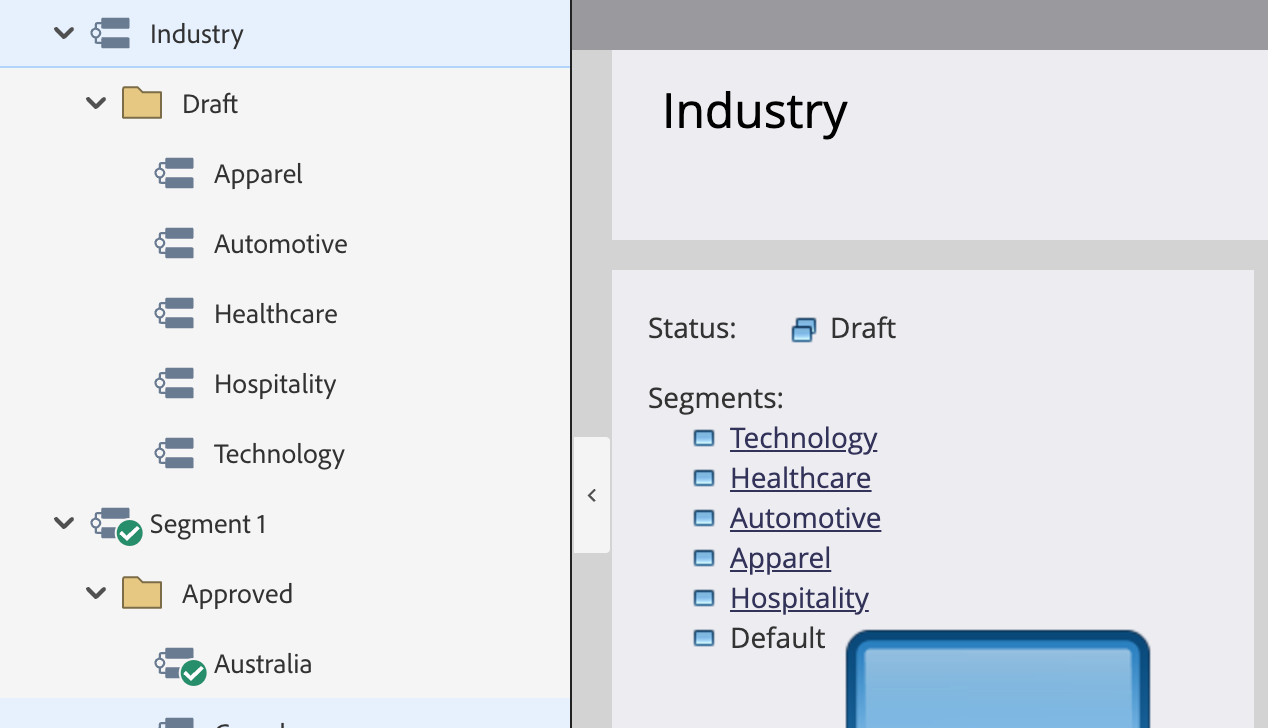
Marketo’s dynamic content requires the use of its Segmentation feature to specify the unique content each predefined segment receives. For example, setting up a segmentation based on “Company Size” may result in creating segments for “Enterprise”, “Mid-Sized”, and “SMB.” You can then target dynamic content to each of those segments.
Segmentations are created using Smart Lists and can include any set of attributes found in your Marketo records. Within a segmentation, leads can belong to only one segment, and segments are applied in the order you specify. This prevents messy situations where leads may meet the criteria for one or more segments, and forces you to think through the 'best fit' for each Segment.
One gate to plan for: a segmentation must be approved before your dynamic content can use it. This walkthrough stays at prerequisite depth; for segment criteria, examples, and advanced build techniques, see our guide to building Marketo segmentations.
Create content for your landing pages and emails
Once you've set up segments, you can start to create content for each segment. This content may vary depending on the segment you are targeting, and the type of content you are designing. You may want to start small and build your way up to more extensive personalization strategies using dynamic content.
Simple yet effective changes, such as using dynamic content in subject lines, can help you gather data on your strategy and test which segments are most receptive to personalized messaging.
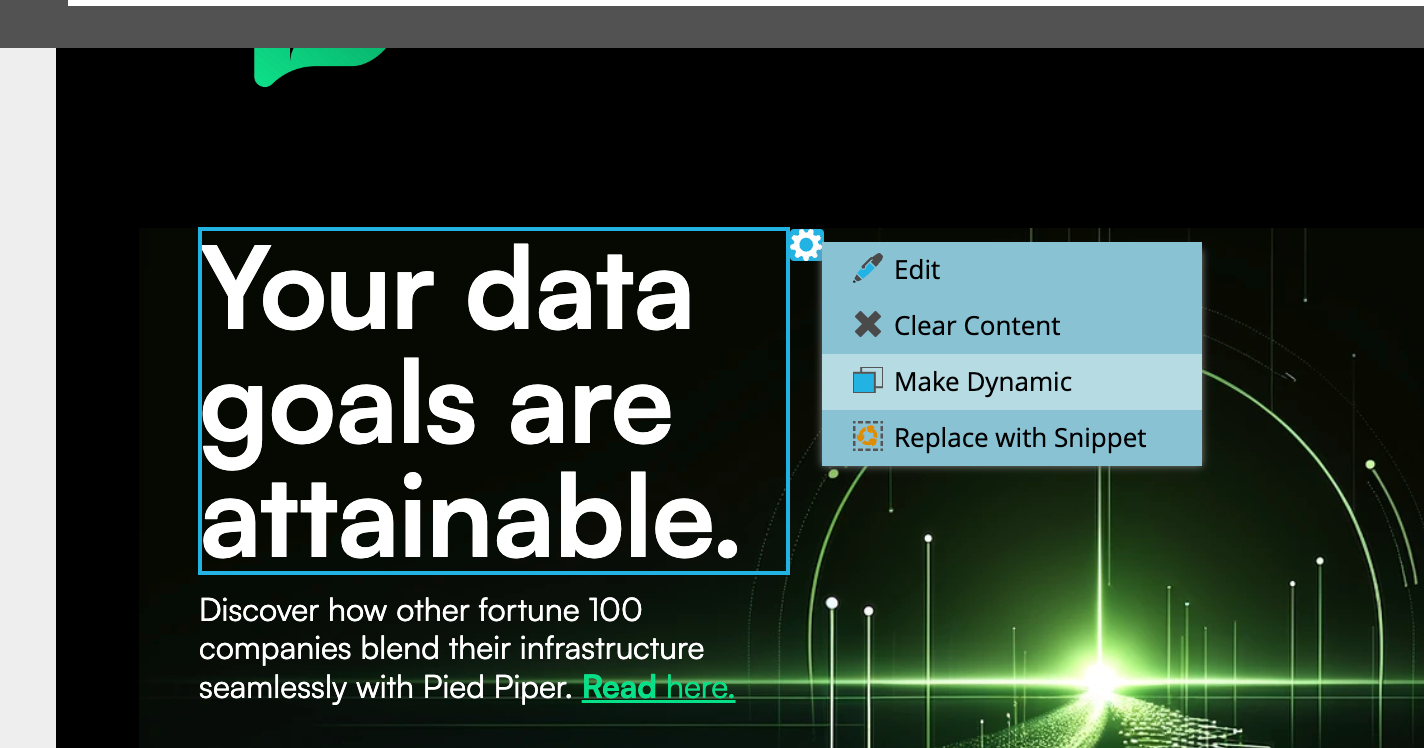
The mechanics are explicit in the editor. In a classic Marketo email, select an element and use the gear icon to choose Make Dynamic (or Replace with Snippet), then pick the segmentation that will drive it. Subject lines can be made dynamic the same way with the Make Dynamic button. Build the Default segment version of every block first, then work through each segment; any segment you leave empty falls back to the default.
Set up dynamic landing pages
Dynamic landing pages in Marketo are pages where individual elements display different content per segment, driven by the same segmentations as dynamic email content.
Every element on a Marketo landing page starts as Static. To make one dynamic, drag it from the Static box to the Dynamic box (or use the element's Settings), choose Segment By to pick the driving segmentation, then edit the content for each segment. The preview tree keeps you honest: a green check next to a segment means it has segment-specific content, and a blank icon means that segment still shows the default. A classic use is showing a customer-specific call to action to existing customers while prospects see a demo offer in the same spot.
Define your personalization rules
Your Marketo instance can run multiple segmentations, but each dynamic block can be governed by only one segmentation at a time. Every segment in that segmentation can carry its own content variation; what you cannot do is drive a single block from two segmentations at once. That constraint is why this step matters: for each asset, decide which segmentation earns the block. A geographic segmentation might govern a compliance footer while an industry segmentation governs the hero offer, but each block answers to exactly one.
Deploy campaigns and report on results
When the campaign is executed, Marketo automatically populates the dynamic content blocks with the appropriate content for each segment based on the personalization rules you’ve established. As each email and landing page is served to a recipient, Marketo determines the correct version of content to display. You can then go back and report on how each version performs to start to build up a center of excellence for your personalization efforts.
The reporting half has a name: Marketo email reports can be grouped by segmentation (Group Email Reports by Segmentations), which breaks performance out per segment and turns this step from a gesture into a habit.
Marketo dynamic content limits and guardrails
Adobe documents hard numbers and sharp edges that most dynamic content tutorials skip. These are the ones that prevent the classic failure modes:
- 20 segmentations per instance: that is the maximum, so treat each one as expensive real estate and reuse before you create.
- 100 segments per segmentation: and complex filters (custom fields, member-of-list, lead owner, revenue stage) can make a segmentation fail to approve well below that ceiling.
- Keep dynamic elements under 20 per email: there is no hard cap, but Adobe recommends staying under 20 because overuse degrades performance.
- Default segment changes propagate: edit the Default segment version of a content block and the change applies to all segments. This is the number-one way teams overwrite their own variations, so edit named segments, not Default, once variations exist.
- The Default segment is fixed: it cannot be moved, edited, or deleted, which is also why building its content first is the safe order of operations.
- Variables resolve in trigger campaigns only: variables inside dynamic content do not resolve in batch campaigns, so batch sends need token or segment logic instead.
When one of these bites anyway, from a segmentation that will not approve to a block showing default content to everyone, our Marketo dynamic content troubleshooting guide walks through the fixes.
Key components of Dynamic Content in Marketo
Marketo's dynamic content feature set comes down to three working parts: segmentations that group your database, dynamic blocks and snippets that vary the content, and segment-level reporting that scores the results.
Dynamic content is a key feature in scaling your marketing operations in Marketo. Let's take a closer look at three aspects of this and how you can apply them to your own marketing efforts:
- Snippets
- Segmentation
- Personalization
Snippets
Marketo snippets are reusable blocks of content that can include text, images, and HTML. Snippets are designed for use across multiple marketing assets, including emails and landing pages. They are a handy feature for scaling marketing efforts and maintaining consistent brand elements across various campaigns.
One of the optimal use cases for snippets is implementing a standardized footer across all your landing pages or emails. This can be used for compliance disclaimers or displaying standard information about your company. Snippets simplify updating items, such as the current year, ensuring these updates appear across all assets. Why search through dozens or hundreds of assets to update the current year when you can update it once?
With dynamic content and snippets, you can create compliance disclaimers that are relevant for users in various regions of the world. For instance, in regions requiring double opt-in, you can incorporate additional opt-in mechanisms.
Snippets can also be dynamic themselves. Adobe's canonical example is a signature block that swaps the sales rep's details based on the reader's location: one snippet, one approval, and every regional email is correct.
Segmentation
Marketo’s segmentation feature powerfully divides your database of leads into distinct groups based on shared characteristics. As mentioned, you will use the Smart Lists functionality to define different segments within a segmentation. You can incorporate any criteria from the lead records to create a segment; however, it’s important to note that segments are applied in the order they appear, and leads can only belong to one segment within a segmentation.
Segmentations apply to your entire database, allowing you to set up dynamic content blocks on any asset. You can be quite creative when designing various types of segmentations in your Marketo lead database. Some examples of Segmentations could be:
- Geographic location
- Age Group
- Gender
- Industry Type
- Job Role
- Purchase History
- Engagement Level
- Subscription Type
- Language Preference
Here are the steps to create a segment in Marketo:
- Go to the “Database” section in Marketo.
- Select “New” and then “New Segmentation.”
- Name your segmentation and begin defining segments by clicking “Add Segment.”
- Specify the criteria for each segment using filters such as age, location, past purchase behavior, or engagement levels.
- Review and approve the segments to ensure they are correctly configured for campaign use.
Personalization
While implementing the above Marketo features is a step towards personalization, the key to effectively scaling your personalization strategy is good data. This involves collecting data that reveals your buyer’s intent through behavioral, demographic, and firmographic attributes. For those looking to expand their knowledge, learn Marketo offers practical guidance.
Getting personalization right can hugely benefit your metrics, whether they be email or sales metrics. However, it's not always easy. Using a first name in personalization is a start, but perfecting your messaging for your audience is the secret to long-term success. Sometimes a lighter touch is necessary, as being too presumptuous with your personalization can be off-putting.
Here are some ideas for personalization in Marketo:
- Birthday discounts and special offers
- Dynamic content tailored to user behavior
- Personalized onboarding emails
- Tailored recommendations based on past purchase history
- Personalized event invitations
- Location-based offers
- Renewal reminders
Dynamic content is also only half of the toolkit. Tokens fill in per-person values such as a first name inside one message, while dynamic content swaps entire blocks by segment; our guide to Marketo tokens breaks down the eight token types and where each fits.
Creating Personalized Experiences at Scale with Knak
Scaling dynamic content significantly enhances the sophistication of your marketing messaging. This poses a significant challenge for marketing operations teams, especially at the enterprise level. Marketing operations professionals often turn to tools like velocity scripting to elevate their personalization efforts.
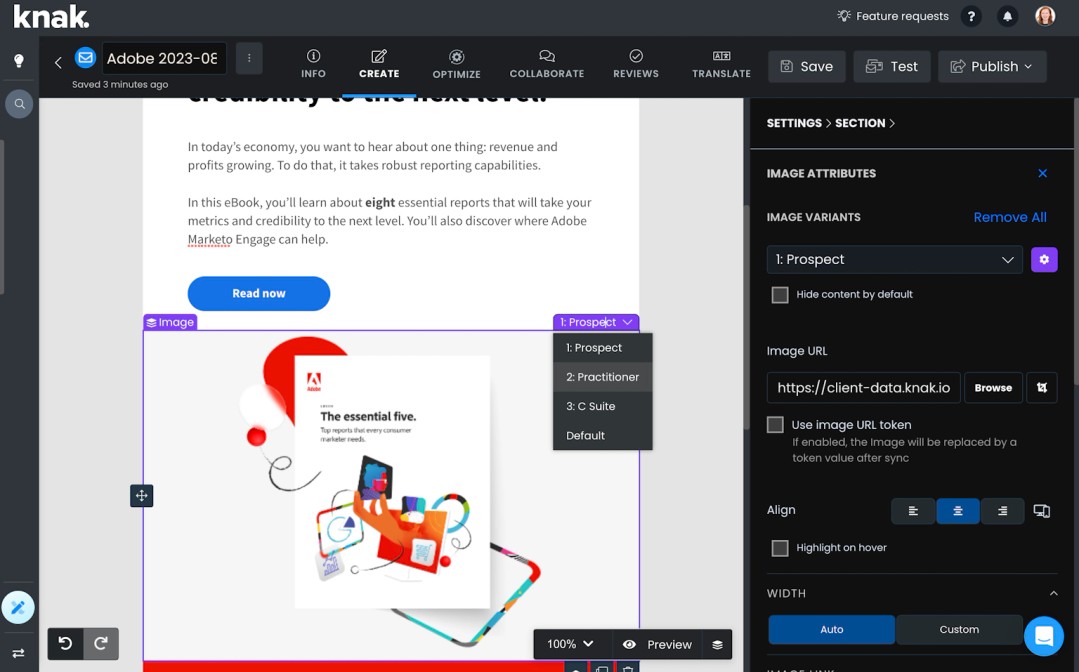
Knak provides a robust set of dynamic content features that help marketing teams achieve peak personalization in Marketo. Velocity scripting is an exceptionally powerful tool, and Knak enables the use of conditional logic and data manipulation without writing any code. Marketers use Knak's dynamic content feature for several reasons:
- Ease of use: Knak is a no-code tool for creating emails and landing pages, allowing you to craft beautiful emails without any coding.
- Data integration: Dynamic content requires Marketo segmentations to work. Knak can directly pull data from your Marketo instance, enabling the creation of segmentations based on the latest, most accurate data.
- Create custom segmentations: You can create custom segmentations on the fly using conditional logic and Marketo data properties.
- Combine multiple segments: The best personalization strategies often require a thoughtful, creative approach to segmentation. You can use Knak to combine multiple segments together to create unique audiences for your campaigns.
- Reusable segmentations: Segments created in Knak are customizable and reusable. When you define a segment in Knak, it can be applied across multiple campaigns and used by other users in your organization.
- Comment on dynamic elements and segmentations: One of the challenges with Marketo's dynamic content feature is knowing which elements in your emails are dynamic. Knak allows you to comment on dynamic elements, making it easy to identify and modify dynamic content.
Scaling your personalization strategy is about combining a thoughtful approach to your segmentation and create that resonates with your audience. Knak is a key tool in scaling your personalization in Marketo. Learn more about our Dynamic Content features here or watch a full demo here.
Frequently Asked Questions
To use dynamic content in Marketo, first create segmentations using Smart Lists, then add dynamic blocks to your emails or landing pages. Assign personalized content to each segment within that block so users see tailored messaging based on their attributes.
Dynamic content refers to content that changes based on predefined segments, while personalization involves tailoring messages using individual data like names or behavior. Dynamic content offers scalable group-level targeting, whereas personalization can be more granular and one-to-one.
The four steps are: 1) Set up your segmentations using Smart Lists, 2) Create the content variations for each segment, 3) Define which segmentation to apply for each dynamic block, and 4) Deploy your campaign and analyze the performance by segment.
Content personalization in Marketo works by leveraging dynamic content and tokens. You can deliver tailored experiences based on segmentation and insert personalized data like names, job titles, or behaviors using lead tokens within assets.
A dynamic content block is a section of an email that changes based on user segmentation. Each segment sees a version of the block designed specifically for them, allowing you to deliver personalized, relevant messaging within a single email asset.
Make Dynamic is the editor command that converts a static element into a dynamic one. Select an element in a classic Marketo email and choose Make Dynamic from the gear icon (subject lines have their own Make Dynamic button), then pick the segmentation that will control the element. From there, each segment in that segmentation can carry its own version of the content.
Dynamic Content is the classic editor personalization system and runs on segmentations. Conditional Content is the new Email Designer equivalent and runs on conditions built inside the Designer. They do the same job in different editors: a classic email uses Dynamic Content, while an Email Designer email uses Conditional Content, which shipped in June 2025, was temporarily disabled that September over token-resolution issues, and returned in October 2025.