

Marketo’s token system is a robust feature set often overlooked when considering how to scale your marketing automation efforts. Tokens enable features such as web and email personalization, help effortlessly scale marketing campaigns, and automate routine data management tasks.
If you're not already familiar with Marketo tokens, you're in for a real treat. In this post, we're going to explore this feature and how you can use it in your Marketo instance.
What is a token in Marketo?
A Marketo token is a named property that allows you to instantly pull values from these properties into your emails, landing pages, and smart campaigns. Marketo tokens are similar to variables used in computer programming and follow many of the same principles.
Imagine working in a large warehouse and needing to retrieve items quickly from shelves. Instead of searching through all the boxes to find what you are looking for, you use a labeling system. Think of tokens as labels that name containers, allowing you to easily reference and retrieve the contents later.
In your Marketo instance, you have thousands of leads. Each lead is stored in your database with properties such as first name, last name, and email. You can access these properties using tokens. Although the name of the token remains the same, the contents can vary for each lead.
This is how personalization is achieved with tokens. By referencing a token, such as {{lead.firstName}}, in an email, Marketo checks the contents of the “container” or token at runtime to retrieve and display the correct value for each individual recipient.
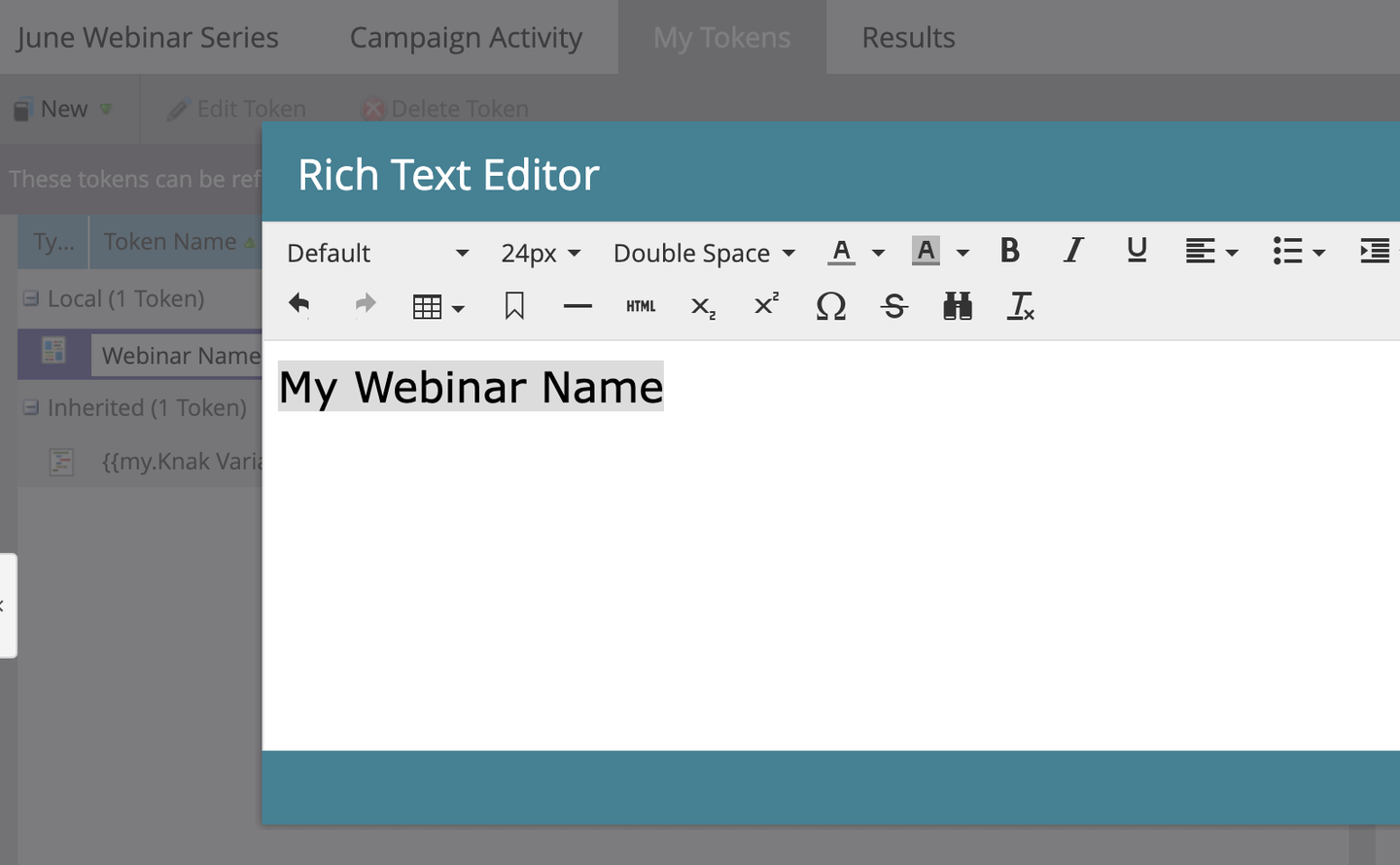
Marketo Token Format
Tokens in Marketo serve as reference points used to recall and use information about specific objects within Marketo. The format of a Marketo token is {{ category.attribute }}.
The format of Marketo tokens might initially seem confusing. This is due to their use of ‘dot notation,’ which facilitates the efficient scaling of the token system.
Let’s expand this analogy from the previous section. In our warehouse, labels describe the contents of each box, and shelves group boxes into similar categories. Marketo offers various types of tokens, including person tokens, company tokens, and program tokens, each representing a unique data category.
Dot notation in Marketo, shown as {{category.attribute}}, specifies precisely where to find the information. For example, using the token {{lead.firstName}} in an email personalizes each recipient’s email with their specific first name, drawn from the ‘lead’ category of data.
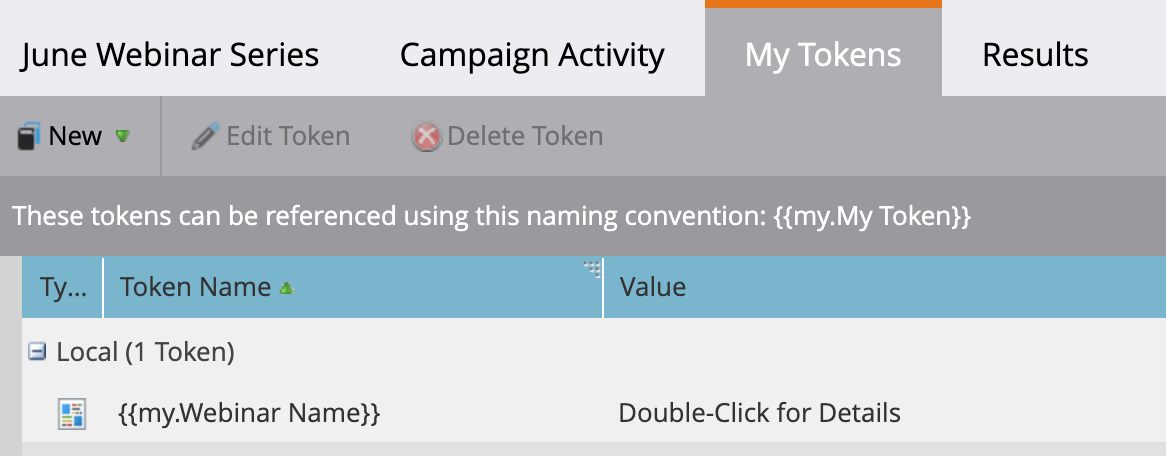
Types of Marketo Tokens
Marketo supports 8 different types of tokens:
- Person Tokens
- Company Tokens
- Campaign Tokens
- Program Tokens
- System Tokens
- Trigger Tokens
- My Tokens
- Member Tokens
This eight-type list matches Adobe's official Tokens Overview for Marketo Engage, and it is not exhaustive: Marketo also creates a token for every custom field in your instance, referenced the same way ({{lead.Custom Field Name}}).
Token Type | Description | Example Use Cases | Where it works (and what to watch out for) |
|---|---|---|---|
Person Tokens | Capture individual lead data. |
| Emails, landing pages, smart campaigns, and flow steps. Always set a default value so a missing field never sends a blank greeting. |
Company Tokens | Related to company-specific data. |
| Same surfaces as person tokens. Values come from the company record, so defaults matter for leads with thin data. |
Campaign Tokens | Specific to marketing campaigns. |
| Smart campaign flow steps such as Send Alert and Interesting Moment, for referencing the campaign itself. |
Program Tokens | Used within specific marketing programs. |
| Assets and flow steps inside the program that owns them. |
System Tokens | System-level information. |
| Everywhere, with no setup. |
Trigger Tokens | Activated by specific actions within campaigns. |
| Triggered smart campaigns only. They never resolve in batch campaigns. |
My Tokens | Custom tokens created within programs. |
| Assets in the program or folder tree where they are defined. They do not resolve when sending from Sales Insight. |
Member Tokens | Used to insert unique values from integrated service partners. |
| Only populates when the sending smart campaign is a child asset of the Event Program. |
Marketo trigger tokens
Marketo trigger tokens capture data from the specific activity that set a triggered smart campaign in motion, and they only resolve inside triggered campaigns. You reference them in the {{trigger.attribute}} format, the same dot notation as every other token type. Because the value comes from the triggering activity, there is nothing for a trigger token to reference in a batch campaign: it renders the default value, or nothing at all.
Adobe's Tokens Overview lists the built-in trigger tokens, which group into three families:
- Activity identity:
{{trigger.Trigger Name}},{{trigger.Name}},{{trigger.Category}},{{trigger.Details}} - Email engagement:
{{trigger.Link}},{{trigger.Subject}},{{trigger.Sent By}},{{trigger.Received By}} - Web activity:
{{trigger.Web Page}},{{trigger.Referrer}},{{trigger.Search Engine}},{{trigger.Search Query}},{{trigger.Client IP Address}}
The classic uses are internal rather than lead-facing: a Send Alert flow step that tells the account owner exactly which link a lead clicked ({{trigger.Link}}), or an Interesting Moment that logs the page a lead just visited ({{trigger.Web Page}}) so sales sees it in the activity feed. Send Alert supports tokens in trigger campaigns only, which is exactly where trigger tokens live anyway.
Since Adobe's May 2025 release, trigger tokens can also pull data from any attribute of the triggering activity in Smart Campaign fields, not just the named list above. That makes them considerably more useful for data management flows, like writing a form field's raw value into a custom field the moment the form is filled out.
Marketo system tokens
Marketo system tokens are built into every instance and resolve everywhere tokens work, with no setup. They cover the functional plumbing of an email rather than personalization:
{{system.date}},{{system.time}}, and{{system.dateTime}}insert the send date and time, which is why{{system.date}}shows up in so many email footers and flow steps{{system.unsubscribeLink}}inserts the unsubscribe link your commercial emails are required to carry{{system.viewAsWebpageLink}}inserts the view-as-webpage link
Adobe's documentation still lists {{system.forwardToFriendLink}}, but Forward to a Friend was deprecated in September 2025, so leave it out of new builds.
You cannot create or edit system tokens. When you need a custom value, that is what My Tokens are for.
My Token field types
Every My Token is created as a specific field type, and the type controls how the value renders and where the token is useful:
- Text: plain text. The size limit is 524,288 characters (UTF-8), or 2 MB.
- Rich Text: HTML, for emails and landing pages
- Date: a date value, displayed as year-month-day
- Number: any integer, including negative values
- Score: for use in the Change Score flow step
- Calendar File: adds an .ics calendar event file to emails and landing pages
- SFDC Campaign: adds leads that join the Marketo program to a Salesforce campaign
- Email Script: executes a Velocity script in your emails
Velocity is still the scripting language to learn for that last type. Adobe shipped its newer Conditional Content feature on Handlebars scripting in 2025, found it was causing some tokens to resolve incorrectly, and reverted. Email Script tokens you write today run Velocity.
My Tokens are also no longer program-and-folder-only. Since March 2025, admins can create global My Tokens at the workspace and instance level from the Admin area, which is worth knowing before you rebuild the same token in fifty programs.
Using Marketo tokens in your assets
Now that we have a solid understanding of how Marketo tokens work, let’s take a closer look at how they can be used in your assets.
Tokens can be used in the following assets:
- Emails
- Landing pages
- Smart campaigns
- Templates
- Webhooks
Using Marketo Tokens in emails
Tokens are one of the best ways to instantly personalize your email marketing content. Tokens can be used in subject lines and email bodies to add a personal touch to your emails.
You can also use “My Tokens” or local tokens to maintain consistent information across multiple email campaigns in the same folder or program. By defining the tokens at the folder or program level, you can then use them to scale content.
One trap worth knowing: tokens do not work in the preheader when you are using Marketo's email editor. A tokenized preheader has to come from your own HTML in the email template, and our guide to Marketo email template syntax covers how to build it.
For tokenized sends in a real lifecycle flow, see how teams structure user onboarding emails in Marketo.
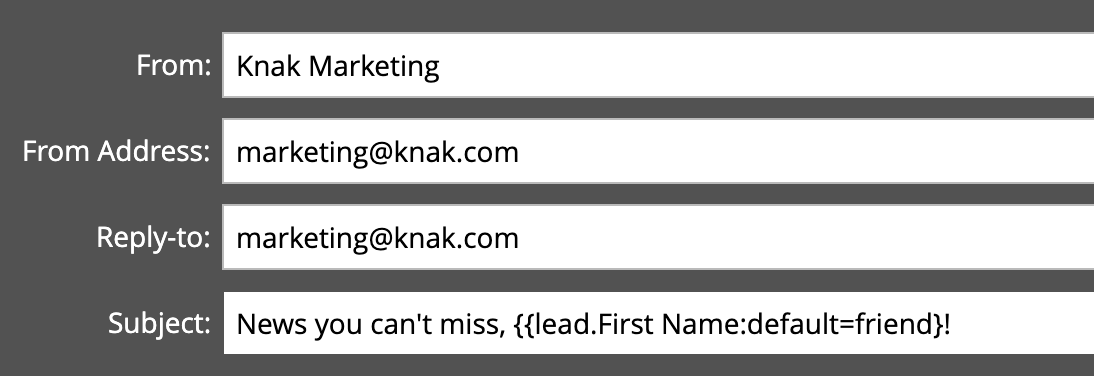
Using Marketo Tokens in landing pages
Similar to email content, you can use tokens in landing pages to personalize or scale content. One of the most powerful use cases for tokens in landing pages is using a template to create landing pages for similar campaigns, such as a webinar series.
For example, your webinar registration page template uses consistent elements such as a banner image, registration form, and information about the event. You can use tokens in the landing page, clone the page to another program, and use "my tokens" to define new values to fill out that new landing page.
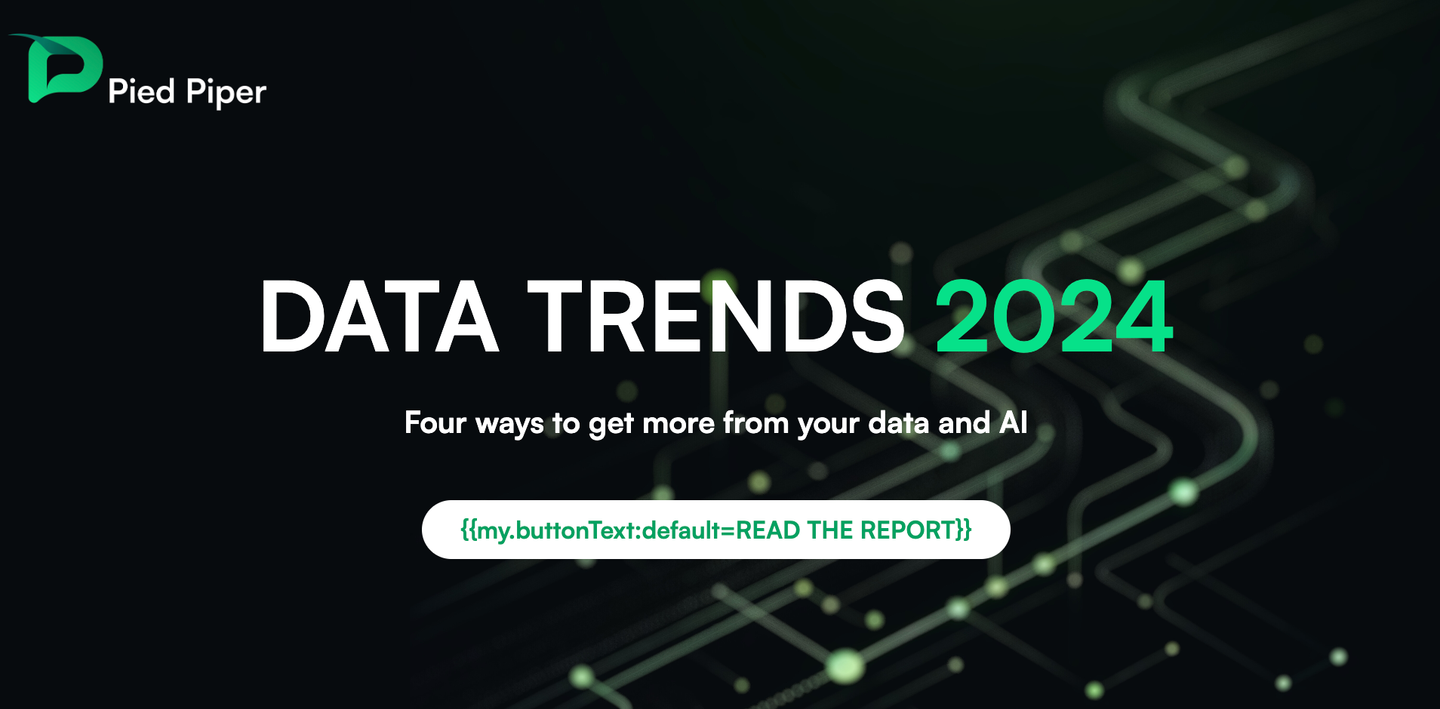
Using Marketo Tokens in Smart Campaigns
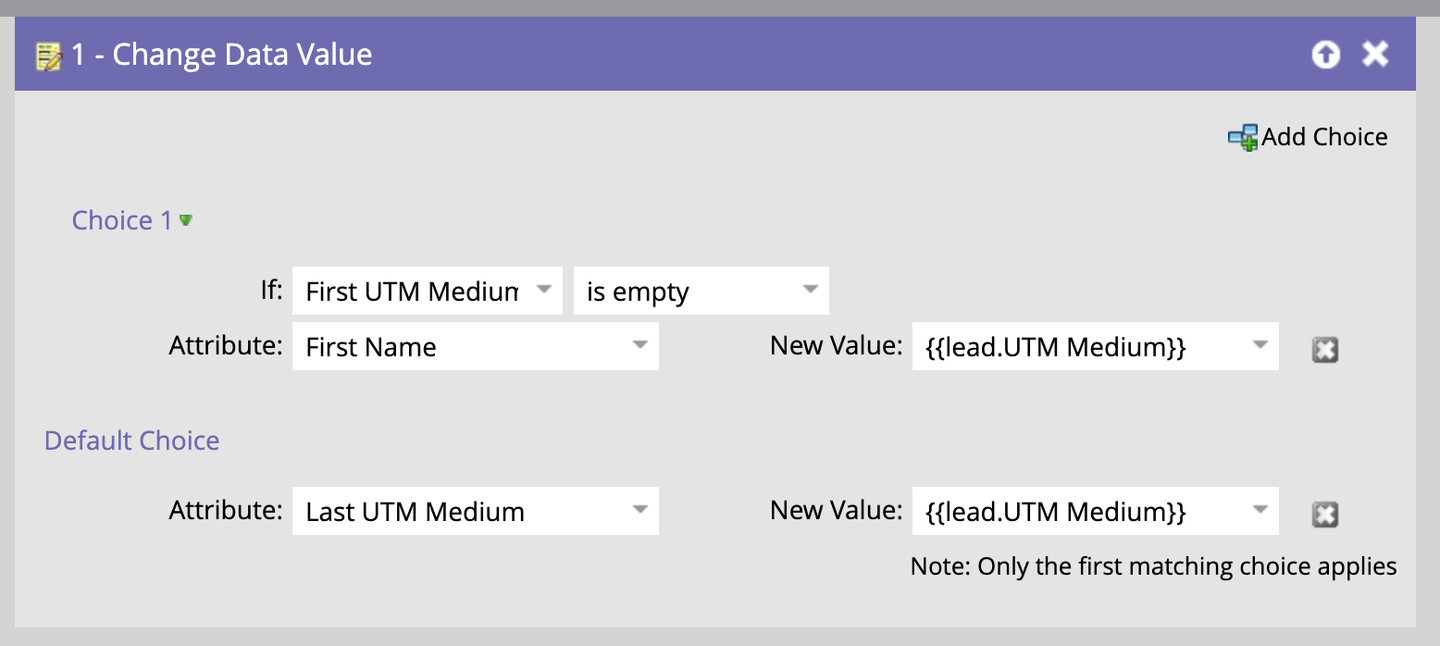
You can use tokens in Smart Campaign which adds another level of flexibility to your enrolment criteria and flow steps. As one example, we've seen MOPs team use this for data management for something like tracking UTM parameters.
Using Marketo Tokens in Templates
Marketo tokens work well in your email and landing page templates. A common example is using a token to dynamically populate the current year in email and landing page footers. You may also choose to use tokens in reusable elements similar to how you might clone a webinar program and replace values on the registration page using tokens.
Tokens are half of the templating story; the template itself is the other half. Our guide to Marketo email templates covers how to structure the assets your tokens fill in.
Using Marketo Tokens in webhooks
Webhooks allow for integration with external tools and are a useful automation tool in Marketo. Webhooks support tokens which can help enhance automation and integration activities. For example, lead tokens could be used to transfer lead details to customer support tools or CRMs, while campaign tokens could be used to customize messages sent through SMS or other messaging platforms.
Marketo token hierarchy and inheritance
As you master the use of tokens in Marketo, you will need to understand how token hierarchy and inheritance work. Don’t worry—it’s not as complicated as it sound
Here are four tips to help you understand this concept.
Organize Your Assets Using a Folder Hierarchy
Marketo’s folder system isn't just for conveniently organizing assets; it also plays a crucial role in the strategic use of tokens. By creating tokens at the top-level folder, every asset within this folder automatically inherits these settings. This is especially useful for extensive campaigns where many assets share common elements, such as webinar series or annual marketing initiatives.
Token strategy and program structure are the same conversation: the way you organize Marketo programs determines which assets inherit which tokens.
Folders Inherit Tokens Automatically
Tokens created in a parent folder are automatically inherited by all child folders and assets within them. This feature enables you to apply common settings or variables consistently across all related assets or programs. For instance, a general ‘Campaign Year’ token set at the parent level ensures consistent date referencing across all campaign materials.
Tokens Can Be Overridden Locally
Local tokens, defined in a child folder or at the asset level, take precedence over those defined in a parent folder. This allows for significant flexibility and control. For example, while a general branding token might be set at the ‘Corporate Campaigns’ folder level, you might want to use a specific branding element for a one-off event in a child ‘Product Launch’ folder.
Understanding How Tokens Are Evaluated
Marketo resolves My Tokens by specificity within the program and folder tree. A local token, created in the program or folder itself, wins. If there is no local token, Marketo uses the inherited token from the nearest parent folder; an inherited token that someone overrode locally counts as local. If the token resolves but there is no value for this person or program, Marketo falls back to the token's default value. System tokens are a separate, built-in namespace, not a fallback tier for My Tokens that fail to resolve.
Two wrinkles are worth knowing because both surface as mystery bugs. Nested tokens are not supported in batch campaigns. And if the email you send from an engagement program is a child email of a default program, its My Tokens resolve from that default program, not from the engagement program you sent it from.
Always Set a Default Value
Every token should carry a default value, because the failure mode is public: a missing value either sends a blank where a word should be or sends the literal token text to your list. Adobe’s own example email greets the reader with “Greetings, earthling” when no first name exists, which is at least a charming failure. “Hi ,” is not.
Defaults also cover you in the one place My Tokens silently refuse to resolve: emails sent from Sales Insight on Salesforce or Microsoft Dynamics only populate standard tokens like lead and company fields, but default values still work there.
Templates and Marketo Tokens
To set up program tokens in Marketo, open the program's My Tokens tab, create the tokens there, and reference them in every asset inside the program. When you clone the program, the token structure travels with it and you only update the values.
One of the best use cases for Marketo tokens is templating programs and assets. Tokens allow you to scale your content because you can update a single token and have that value appear anywhere it is used. Let's walk through an example of a webinar program.
Example: Templating a webinar program with tokens
Webinars are a great use case for Marketo tokens because many organizations run quite a few each month. Keeping up with webinar scheduling, content creation, and coordinating everything in between can be quite the challenge. With tokens you can scale content creation for webinars to dramatically improve your productivity.
Set up a basic template
Start by creating a basic webinar template that includes standard elements like webinar title, description, date, time, and registration links. Each of these elements will be set up as a token in Marketo.
Create your tokens
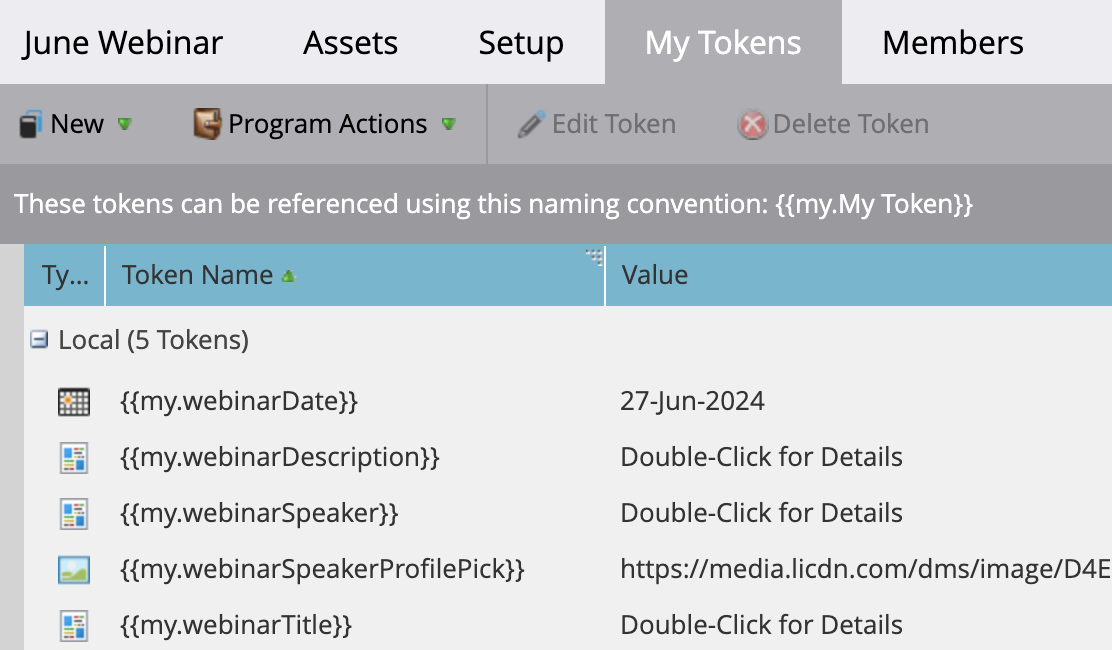
In your template program, create tokens such as the following:
- Webinar Title Token ({{my.webinarTitle}}): Used in emails, landing pages, and social media posts to ensure consistency across all promotional materials.
- Webinar Date and Time Token ({{my.webinarDate}}): Automatically updates the date and time across all assets, reducing manual updates.
- Registration Link Token ({{my.registrationLink}}): Centralizes the registration URL, making it easy to update if changes occur.
It's important to note if you're using a registration partner like GoToWebinar, the process of maintaining links may be automatically taken care of for you.
Design assets with the tokens
Including tokens in your asset templates is the key ingredient in saving time. Here are some ideas to get you started:
- Use tokens to stylize a "Speaker" module that displays the webinar presenters
- Use tokens to create a standard design for webinar date and time
- Use a tokenized reminder email 24 hours and 1 hour before the webinar
- Use a token to send out webinar recording links
Using a tool like Knak, you can design beautiful emails and landing pages, while utilizing Marketo's token system.
Clone and modify
Once you have a base template, you can clone the program and modify the tokens to fully customize the webinar assets. This is how you create a repeatable process in Marketo!
Using Marketo tokens to scale your marketing automation
Marketo tokens are a versatile and powerful way to scale your marketing automation activities. They allow for personalization, content scaling, and can be used to effectively generate asset templates like emails and landing pages. Tokens also allow you to manage the quality and consistency of your marketing communications.
When it comes to scaling your marketing, using tokens in your Marketo templates may be the most effective choice you can make. You can design a beautiful template, then use tokens to allow end-users to fill out the content—without having to directly edit the content. Building a strong foundation in Marketo is essential, and Marketo courses provide valuable guidance.
This is where Knak shines! Knak is a no-code email and landing page template creation tool. If you're looking to scale your Marketo processes, then you should watch our video demo today.
Frequently Asked Questions
To add a token in Marketo, navigate to your program or folder, click on the My Tokens tab, and select the type of token you want to create. Assign a name and value to the token, then save it. Once created, you can use the token in emails, landing pages, or smart campaigns by referencing it in the format {{my.TokenName}}.
Text My Tokens support up to 524,288 characters (UTF-8), or 2 MB, per Adobe's Marketo Engage documentation. Other token types are limited by their field type: a Date token holds a date, a Number token holds an integer, and person or company tokens are bounded by the underlying field. It is still smart to test long values to make sure they render correctly in emails and landing pages.
Local tokens ({{my.TokenName}}) are created within a specific program or folder and apply only to assets within that hierarchy. System tokens ({{system.date}}, {{system.unsubscribeLink}}) are built into Marketo and provide global values like timestamps and unsubscribe links. Local tokens allow for flexible program customization, while system tokens automate built-in functionalities.
Marketo tokens can be inserted into webhooks to pass dynamic data to external systems. Use lead tokens ({{lead.Email}}) to send personalized information, or program tokens ({{program.Name}}) to include campaign-specific details. Configure your webhook by inserting tokens in the Request Payload to automate data transfers between Marketo and third-party tools.
To create dynamic content with Marketo tokens, insert lead or program tokens into emails, landing pages, or smart campaigns. For example, using {{lead.First Name}} in an email personalizes the greeting, while {{my.WebinarTitle}} ensures consistency across assets. Pairing tokens with dynamic content rules further customizes messaging based on audience segmentation.
Tokens fill in per-person values inside one message, while dynamic content swaps entire content blocks by segment. If you are choosing between them, our guide to Marketo's dynamic content system breaks down when each one fits.
That message is Marketo’s validation error for an invalid My Token name. Token names may only contain letters, numbers, spaces, and the characters & # _ and -. Anything else, such as a period, slash, or quotation mark, triggers the error. It usually appears when you rename a token or clone a program that arrived with a non-compliant token name, often from an import. Rename the token using only the allowed characters and the error clears.