If you have spent the last year copy-pasting your brand voice guide into Claude prompts before generating email copy, only to clean the output up anyway because the model does not know your merge tag syntax, your locked theme elements, or which campaigns currently exist in your instance, you have felt the gap that the Knak MCP is built to close. This walkthrough covers the alpha as it works today: how to connect, what to try first, and where the boundaries are. If Model Context Protocol itself is unfamiliar, that introduction covers the concept in more depth.
Connecting the Knak MCP to your AI assistant
The Knak MCP uses OAuth 2.1 with PKCE. Access is scoped to whatever brands, campaigns, and assets your Knak account already has, so the AI sees what you see and acts only on your behalf.
You need three things:
- An active Knak Enterprise account with access to at least one brand
- MCP enabled at the company level by your Knak admin (a one-time toggle in company preferences)
- An MCP-compatible AI client, currently Claude or ChatGPT
In Claude, open Customize on the left navigation, search for Knak Enterprise in the connectors list, click Connect, and follow the OAuth prompt. In ChatGPT, go to Settings, open the Apps tab, click Create App, paste the MCP server URL, and authorize. Knak's step-by-step integration guide for Claude and the equivalent guide for ChatGPT include screenshots for every click.
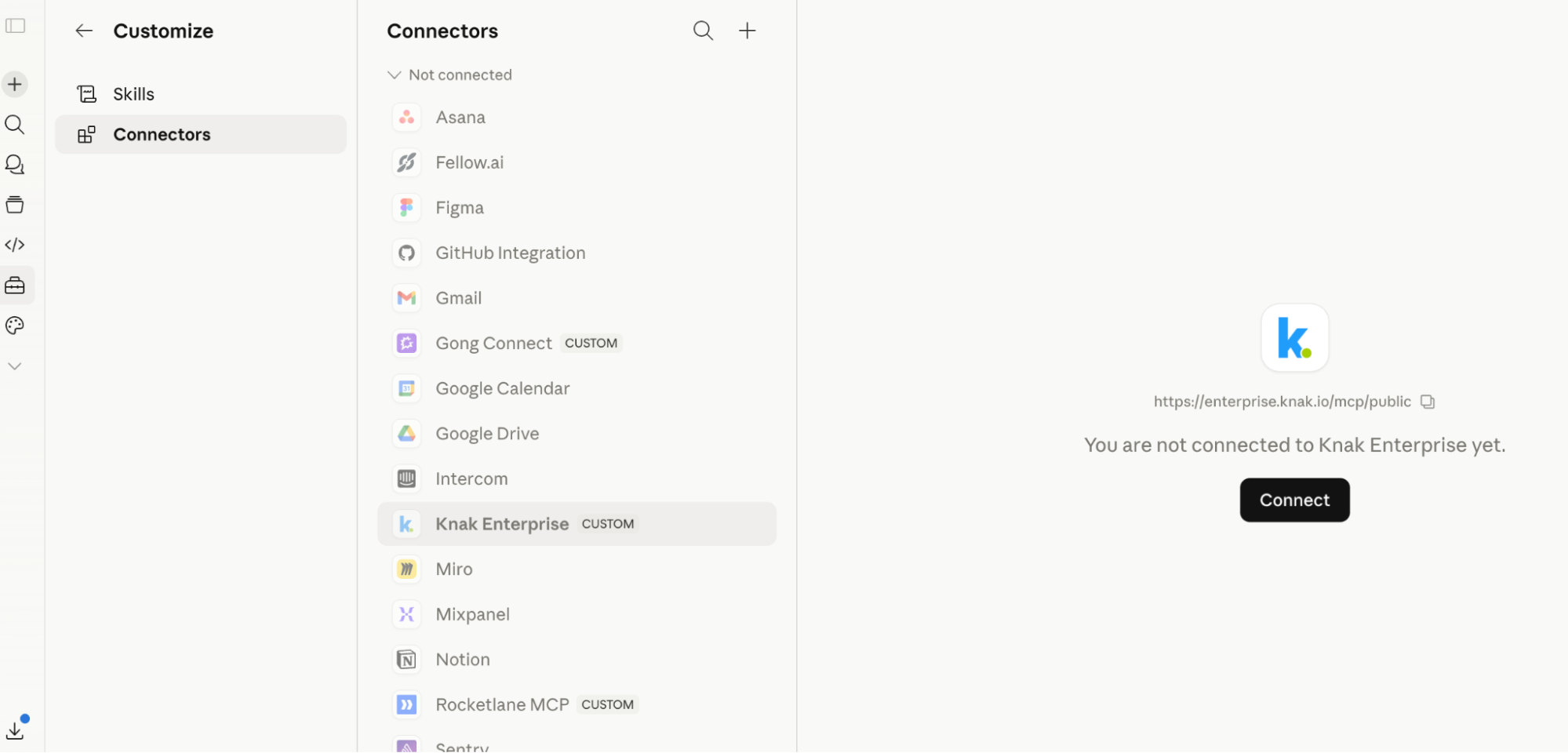
The integration is in alpha and currently requires sign-up, so contact grace.lee@knak.com if your organization wants to participate. The OAuth flow runs automatically in the AI client, so there is no API key to copy, no JSON config file to edit, and no client secret to manage. Once authenticated, the Knak tools are available in any conversation. Claude exposes them across chats; in ChatGPT, type @ in the prompt field and select Knak, or start a new chat from the Knak app entry.
Browsing your brands, campaigns, and themes
The first useful prompt is the one that feels too simple. Ask the AI to look around your workspace, and you will get an immediate sense of what is and is not different about working through MCP.
"List my brands in Knak."
The AI calls list-brands, the server returns the brands you have access to, and the list appears in the conversation. The same pattern works for campaigns and recent assets:
"Show me all campaigns in my [brand name] brand."
"List all emails I created this month."
Anyone who has copy-pasted "the EMEA brand uses these guidelines, our recent campaigns are organized like this, here is our send history" into a ChatGPT window before asking for a draft will recognize what just happened. That whole layer of context-injection disappears, because the AI has direct access to the same workspace you do, scoped to the same permissions.
Themes work a little differently. The MCP server treats them as opt-in, so the AI only calls list-themes when you ask. Most teams have dozens of themes and surfacing all of them in every conversation creates more noise than signal. To anchor a generation to a specific theme, ask:
"What themes are available for my [brand name] brand?"
The AI returns the list, and you can reference any theme by name in the next prompt.
The discovery tools matter most for what they enable downstream. The first email you generate will feel like the demo. The compounding value comes from the AI knowing what already exists, what you have permission to use, and where new assets should land, without you having to re-explain.
Generating your first email with MCP
Once you know what brands and campaigns you have, ask the AI to generate an email. The prompt structure is consistent across both clients:
"Create a promotional email for our summer sale in the Q3 Marketing campaign for the [brand name] brand."
That single sentence carries enough for the MCP server to call generate-asset with the right parameters. You can specify the theme, subject line, sender details, or attach images, but only the prompt and campaign are required. A more directed example:
"Create a welcome email using the Standard Newsletter theme with subject line 'Welcome to our community' for our SMB brand in the Q3 Onboarding campaign."
In ChatGPT, the AI surfaces a permission prompt before the asset is created. Click Generate Asset to confirm and the request goes through. Claude does not require an interstitial click in current versions, though that may change as the platforms evolve their consent UIs. Either way, generation is asynchronous, and that is where the alpha gets visually interesting.
If your AI client supports MCP UI resources, the Knak server returns a live progress widget that polls until the asset is ready. ChatGPT supports this today, so you watch a progress bar move through the phases and get a rendered preview screenshot once the asset is complete. Generation usually finishes in one to two minutes for a standard email, with the widget timing out after about five. Clients without widget support get the same information as structured text: a campaign URL, an asset URL, and a link to check status.
One thing matters more than the rest. The AI assistant orchestrates; it does not write the email itself. The actual content is generated inside the Knak platform using your brand's themes and design system, with the model choosing what to ask for and how to structure the request. Knak produces the asset. That separation is also where rendering reliability comes from: the hard problems of email rendering, including Outlook compatibility, dark mode handling, responsive behavior, and the CSS quirks that trip up LLMs working with raw HTML, are handled by the infrastructure underneath rather than by the model.
Reviewing and refining in Knak Studio
The asset that lands in your instance is a draft, and it opens in Knak Studio with the same tools you already use for any email built by hand: visual editor, preview across clients, approval workflow, MAP sync. The campaign URL and asset URL from the AI conversation open the relevant view in Knak directly.
This part of the workflow does not change. The MCP integration is a way to start the asset, not to bypass everything that comes after. Your team's review and approval process applies, brand controls apply, and the asset only syncs to your MAP when someone with the right permission approves it.
For a different version, head back to the AI conversation. Update the prompt, send it again, and a new asset is created in the same campaign as a separate draft.
"Create this without a theme."
"Now make a version targeted at enterprise buyers instead."
Each prompt produces a new asset. You compare them in Knak, refine the one you want to keep, and archive the rest. This iteration pattern is closer to how a designer explores creative directions than how most people use AI for email today, and it is one of the patterns the alpha makes practical.
Workflow ideas: What to build next
The Knak MCP gets more useful as you connect adjacent tools. A few directions worth exploring once the Knak connection feels routine:
- Brief intake from your project management tool. With a PM MCP server connected, the AI can pull an active brief from Asana or Linear and generate a Knak draft against it without copy-paste.
- CRM context for segmentation. A CRM MCP gives the AI access to your audience data, so a prompt can reference "the SMB segment we marketed to last quarter" and the AI can pull the relevant context before generating.
- Performance data on the back end. An analytics MCP closes the loop: generate an email, watch performance, then ask the AI to compare against historical campaigns.
Knak's MCP does not configure any of these directly. Each server provides its own piece of the picture, and the AI coordinates between them as more enterprise tools ship their own servers. The current alpha covers workspace discovery and email generation; merge tag validation, theme drift detection, multi-region assembly, and deeper governance workflows are on the roadmap rather than in the current release.
Tips for better results
A few patterns produce consistently better output:
Be specific about the audience and goal. "Create a promotional email" produces something generic. "Create a promotional email for SMB marketing leaders evaluating their first marketing automation platform, focused on the time savings of moving from a native MAP builder" produces something usable.
Always name the brand and campaign. The Knak MCP can disambiguate when there is only one match, but the AI works better when the destination is unambiguous, and naming the brand also helps when the same campaign name exists across multiple brands.
Reference a theme when you have one in mind. If you know the asset should use a particular theme, name it in the prompt. If you are exploring, leave the theme out and let the AI work with the brand defaults.
Iterate on the prompt, not the output. The first generation will not be the last. Update the prompt and run it again rather than open the draft in Studio for major rewrites. Save Studio for the refinement pass once a version is close to what you want.
Treat the AI as the orchestrator. The model is choosing what to ask Knak to build, not writing the email itself. Prompts that describe strategic intent, including audience, message, tone, and call to action, work better than prompts that try to dictate every word.
The full vision of production-platform MCP is bigger than what ships in this alpha, but the workflow that is live right now is real and usable: describe an email, watch the AI generate it inside your Knak instance, refine in Studio, and route through your existing approvals. To join the alpha, contact grace.lee@knak.com. To see how Knak's marketing production platform handles the layer underneath all of this, including the rendering, brand controls, approvals, and MAP sync, book a demo with your own brand assets.